Walking Pad Under a Standing Desk Setup Guide (2026)
Current product-safety notice: CPSC warned consumers on April 16, 2026 to stop using specified Sperax Pro, Q1, RM-01 and RM-02 walking pads and treadmills. We removed older recommendations and shopping links for that brand while exact models are re-audited. Check the official CPSC warning and follow its stop-use instructions.
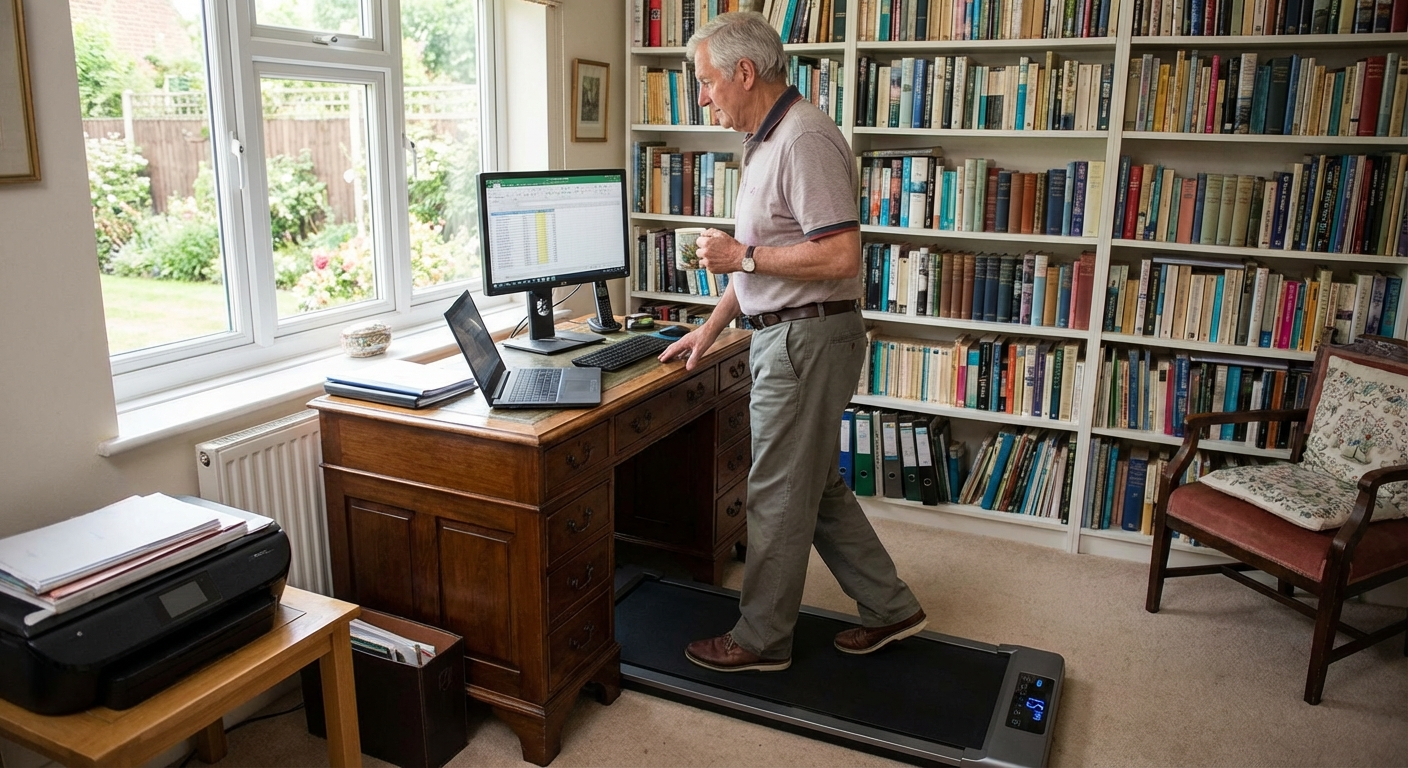
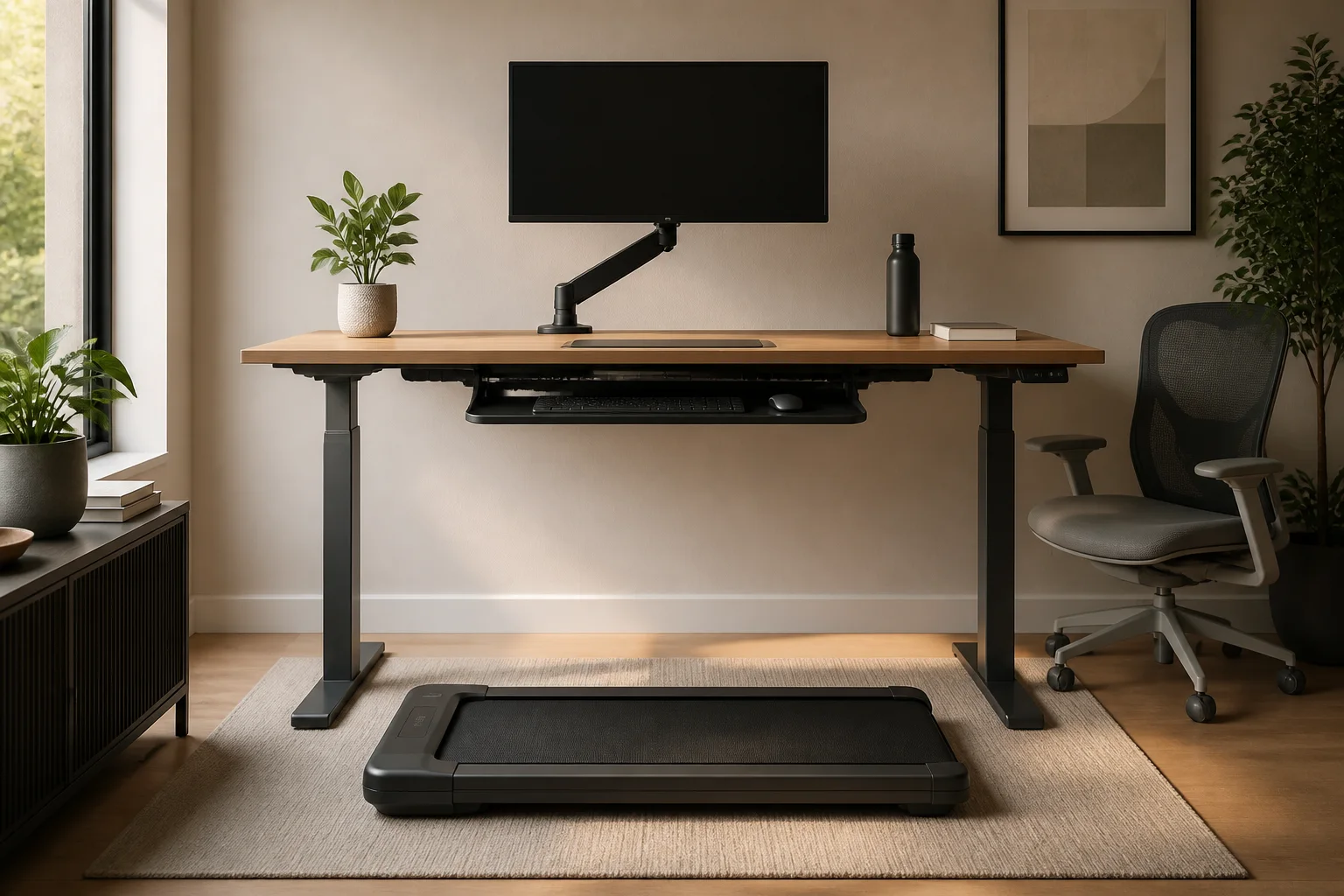
Standing desks solved the sitting problem. But standing in one spot for hours creates its own issues — lower back fatigue, leg stiffness, sore feet. The natural evolution is adding movement: a walking pad under the standing desk that lets you walk at 1.0–2.0 mph while you work.
The concept is simple. The execution has details that make or break the experience: desk height, vibration, cable safety, monitor shake, floor protection, and the right walking pad dimensions. Get these right and you have a seamless walk-while-you-work setup. Get them wrong and you have an expensive tripping hazard that makes your monitors wobble.
Will It Fit? Measuring Your Space
Walking Pad Dimensions
| Measurement | Typical Range | What to Check |
|---|---|---|
| Length | 50–65 inches | Floor depth from desk edge to wall behind you |
| Width | 20–27 inches | Floor space between desk legs |
| Height (step-on) | 4.0–5.5 inches | Desk maximum height must accommodate this |
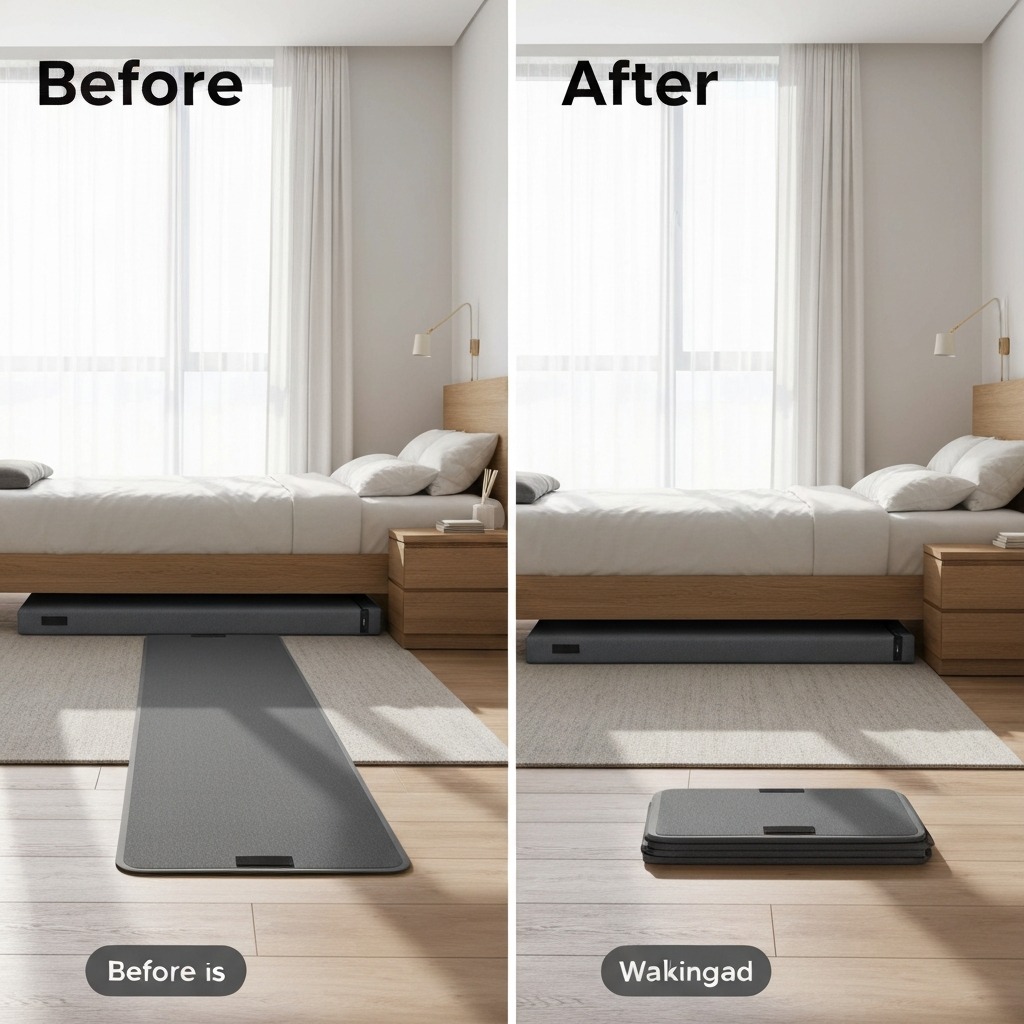
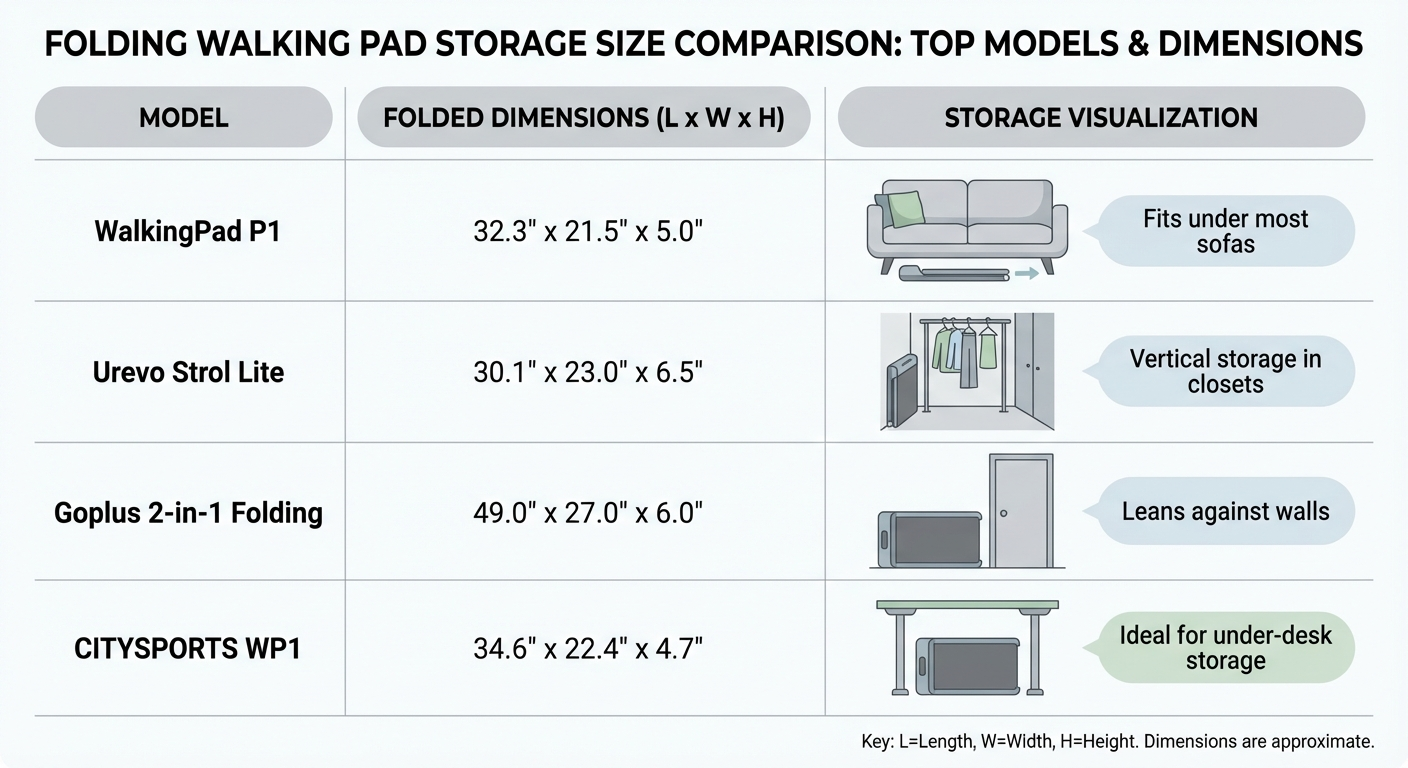
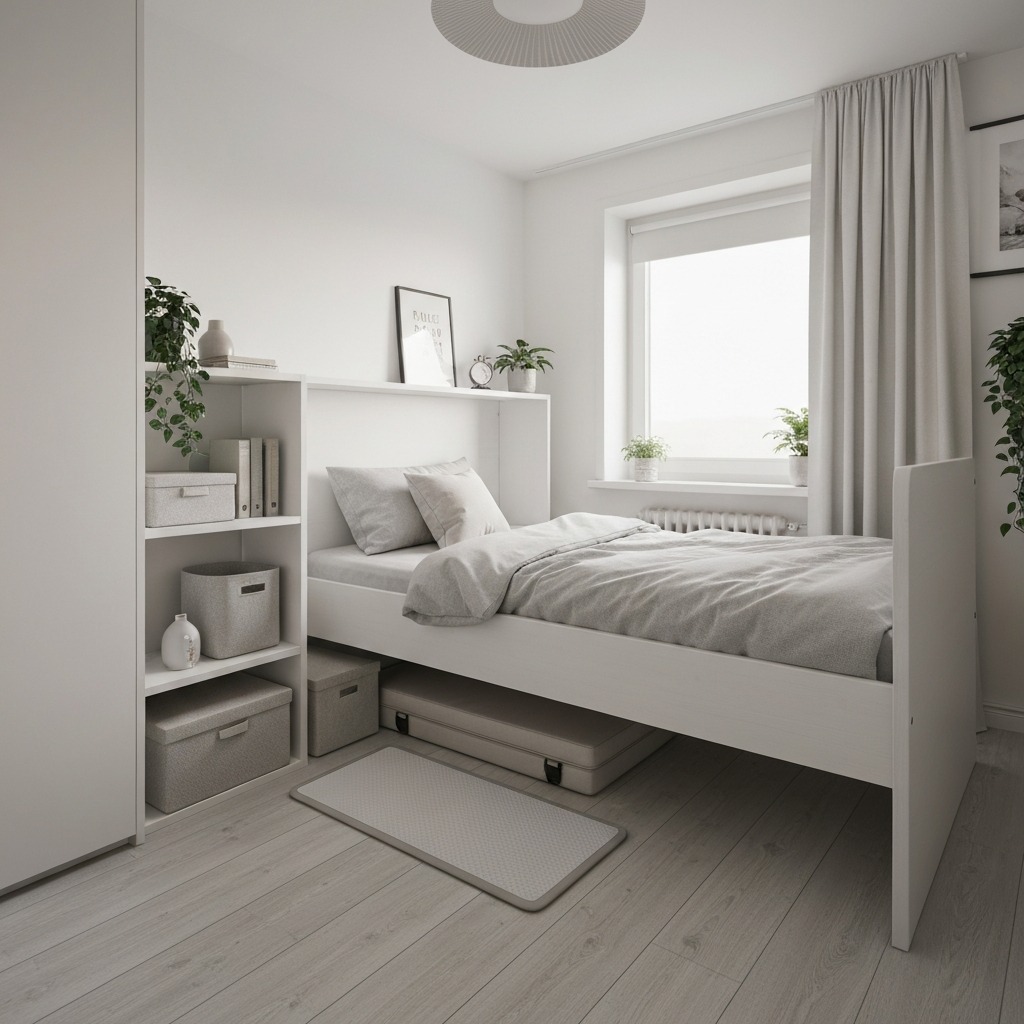
| Folded length | 25–35 inches (foldable models) | Storage space when not in use |
Space Requirements
| Space Needed | Minimum | Recommended |
|---|---|---|
| Floor depth (front to back) | Pad length + 6" | Pad length + 12–18" |
| Floor width | 24" | 30"+ (room to step off safely) |
| Ceiling clearance | Your height + 4–5" (pad thickness) | Should not be an issue in standard rooms |
| Behind the pad | 6" minimum gap to wall | 12"+ for safe step-off space |
The Measurement Process
-
Measure your floor space — depth from desk front edge to wall (or nearest obstruction) behind you. Subtract 12 inches for safety clearance. The remaining space is your maximum walking pad length.
-
Measure between desk legs — walking pad width must fit between the legs with 2–3 inches of clearance per side.
-
Check desk maximum height — you need your current standing height setting plus 4–5 inches for the walking pad platform. If your desk maxes out before this height, the setup will not work ergonomically.
Will Your Desk Go High Enough?
| Your Height | Normal Standing Desk Height | Height with Walking Pad | Desk Max Needed |
|---|---|---|---|
| 5'2" | ~38" | ~42–43" | 43"+ |
| 5'6" | ~40" | ~44–45" | 45"+ |
| 5'10" | ~42" | ~46–47" | 47"+ |
| 6'0" | ~44" | ~48–49" | 49"+ |
| 6'2" | ~46" | ~50–51" | 51"+ |
Most quality standing desks have a maximum height of 48–52 inches. If you are under 6'0", most desks accommodate a walking pad. Taller users should verify maximum desk height before purchasing.
Desk Height: The Critical Adjustment
The 90-Degree Rule
Your desk surface should position your elbows at a 90-degree angle when your hands rest on the keyboard — whether you are standing on the floor or standing on a walking pad. The pad adds 4–5 inches to your standing height, so the desk must rise 4–5 inches.
How to Set the Correct Height
- Step onto the walking pad (belt off — just stand on it)
- Stand in your natural posture — feet hip-width apart, shoulders relaxed
- Bend elbows to 90 degrees — forearms parallel to the floor
- Raise the desk until the desk surface meets your forearms
- Save this height as a preset (most motorized standing desks have memory buttons)
Two-Preset System
| Preset | Height | When to Use |
|---|---|---|
| Preset 1: Standing (no pad) | Your normal standing height | Standing without walking pad |
| Preset 2: Walking (on pad) | Normal height + 4–5" | Walking on pad |
| Preset 3: Sitting | Your sitting height | Seated work (optional) |
Save both presets so you can switch between standing and walking without manual height adjustment each time.
Best Walking Pads for Standing Desk Use
What Standing Desk Users Need
| Requirement | Why |
|---|---|
| Flat profile (no handrail) | Handrails block desk access and create visual clutter |
| Low step-on height | Minimizes how much you raise the desk; easier step-on/off |
| Narrow footprint | Fits between desk legs without crowding |
| Quiet motor | You are working 2–3 feet from the motor; loud = distracting |
| Remote control | Start, stop, and adjust speed without bending down |
| Auto-stop | Belt stops when you step off — safety essential during work |
Top 4 Walking Pads for Standing Desks
| Walking Pad | Dimensions (L×W) | Step Height | Weight Limit | Motor Noise | Price | Best Feature |
|---|---|---|---|---|---|---|
| WalkingPad C2 Mini | 50" × 21" | ~4.7" | 220 lbs | Quiet | ~$250 | Smallest footprint; folds in half |
| UMAY Under Desk | 55" × 23" | ~4.5" | 265 lbs | Quiet | ~$200 | Lowest step height; high capacity |
| WalkingPad R2 | 58" × 24" | ~4.9" | 265 lbs | Very quiet | ~$450 | Quietest motor; premium build |
Why Flat Pads (Not Handrail Models)
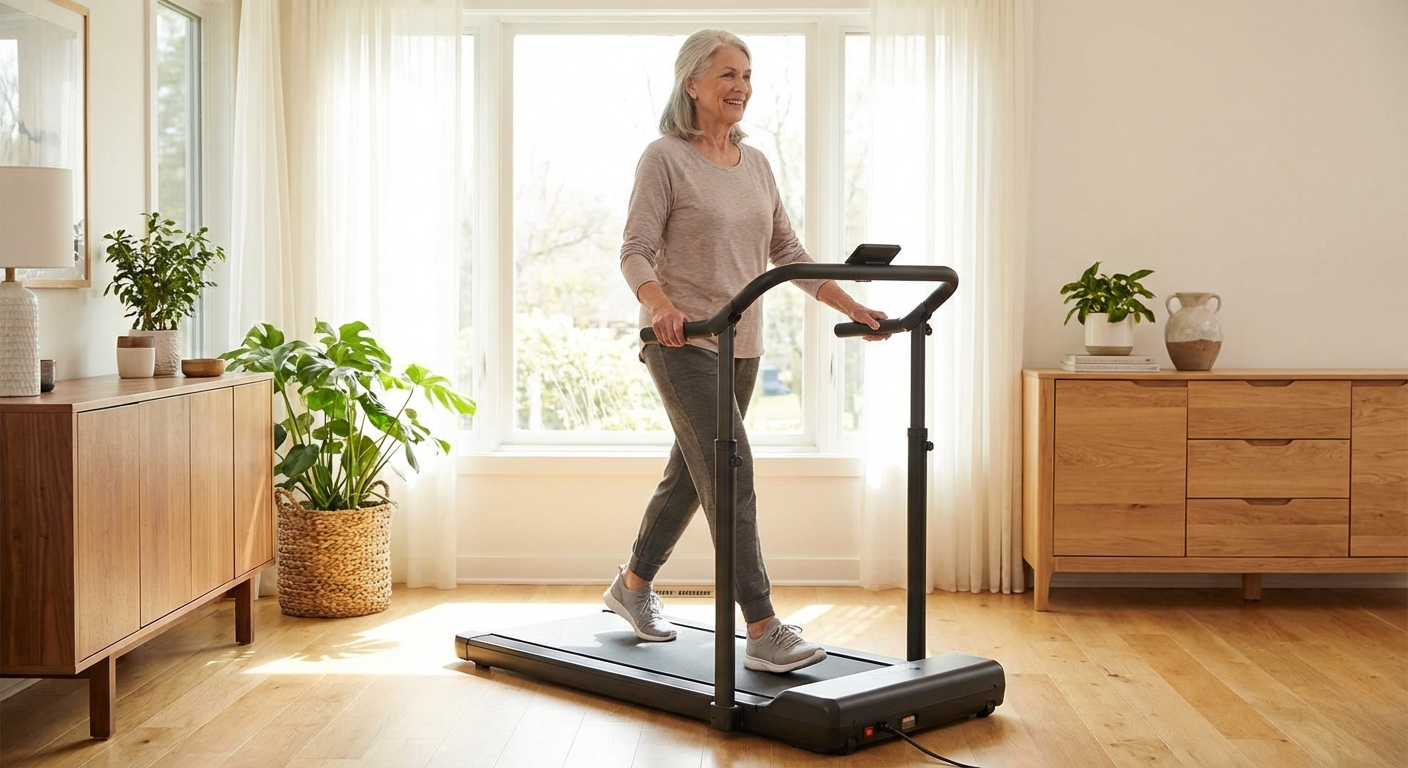
Under a standing desk, you need to step on and off the pad freely throughout the day — taking a phone call, walking to the printer, grabbing coffee. A handrail blocks quick exit on the sides and makes the setup feel like a gym fixture in your office. Flat pads let you step off in any direction.
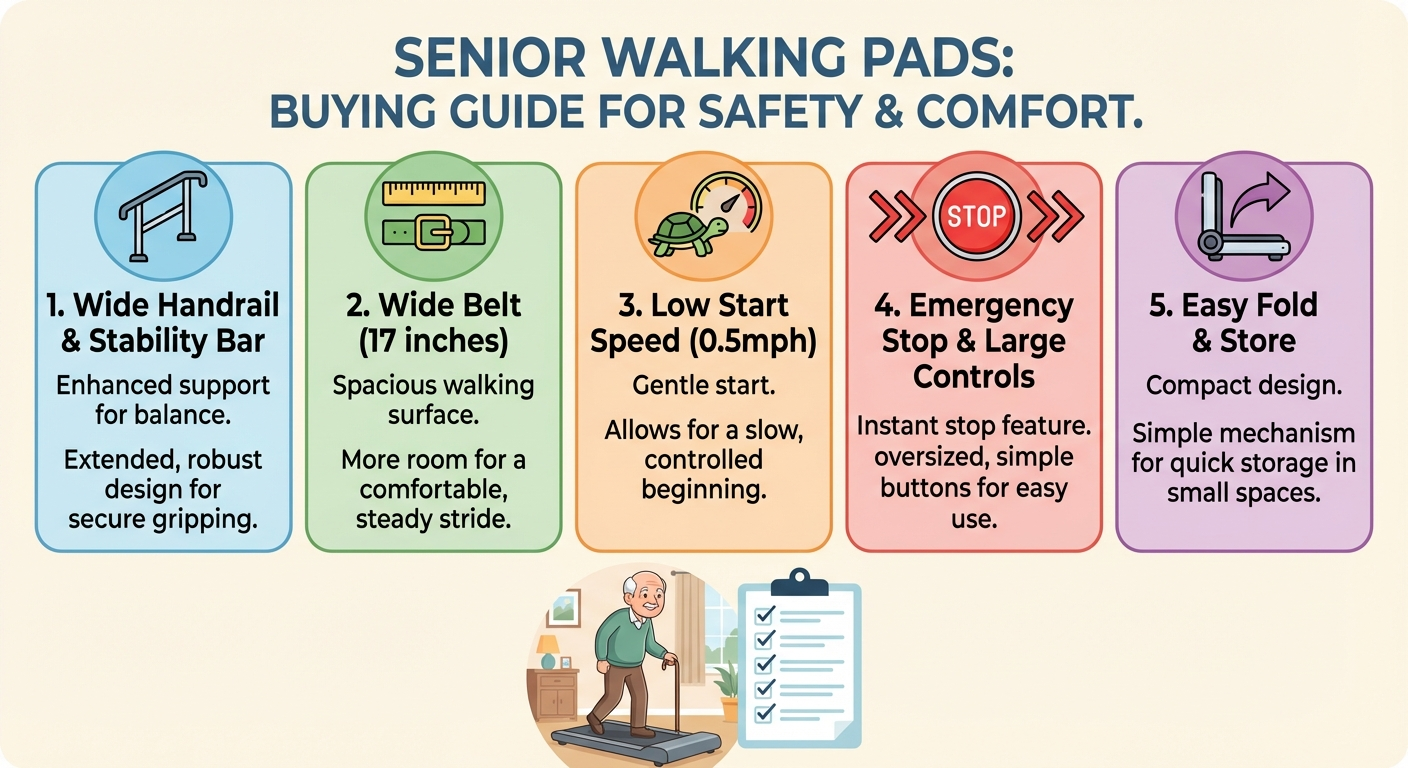
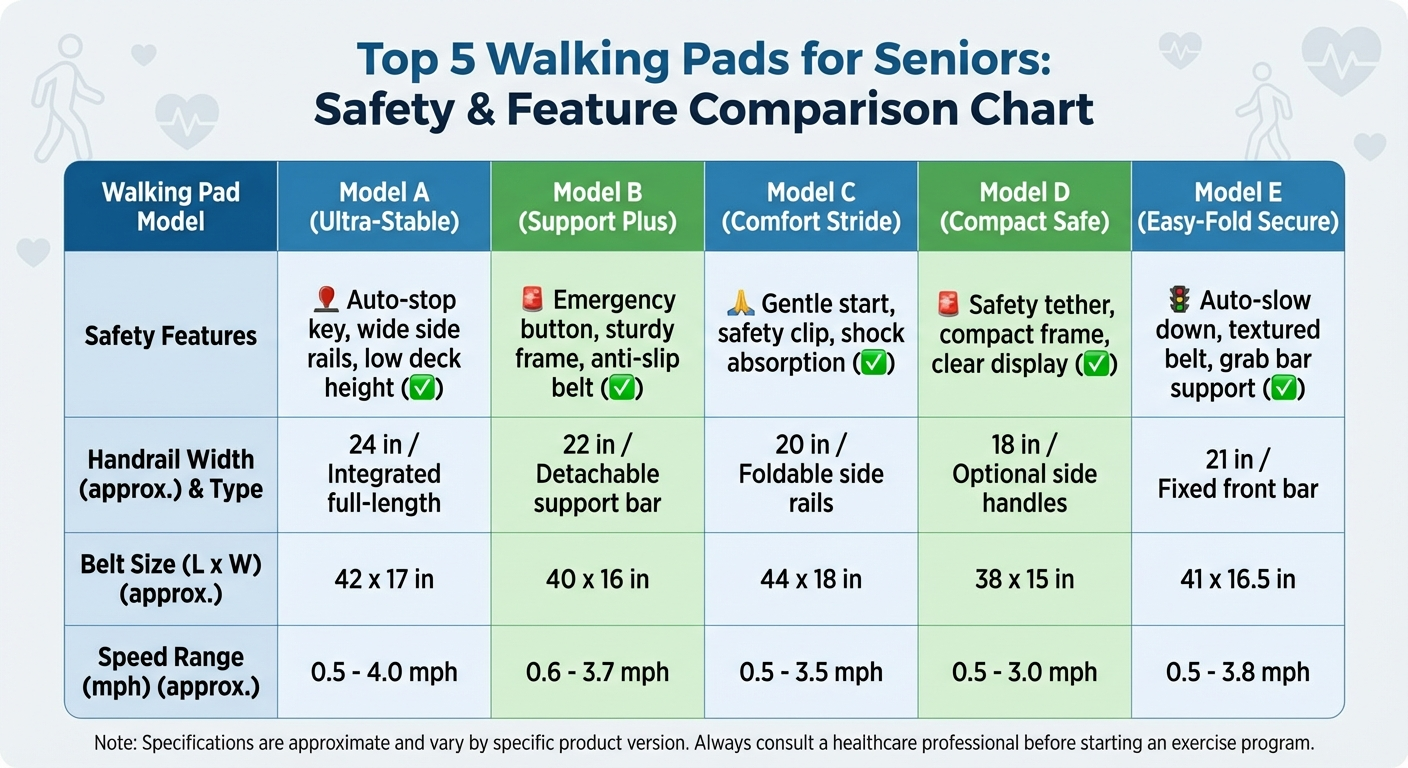
If you need handrail support for balance, see our best walking pad for seniors guide — but consider placing the handrail model beside your desk rather than under it.
For budget options, see our best budget walking pads guide.
The Vibration Problem (and How to Fix It)
Why Vibration Happens
Walking creates rhythmic impact through the floor. If your standing desk legs sit on the same floor, the vibration travels: foot → pad → floor → desk legs → desk surface → monitors. The result: monitors wobble, coffee ripples, and video calls show you bouncing.
Vibration Solutions (Most to Least Effective)
| Solution | Effectiveness | Cost | Notes |
|---|---|---|---|
| Floor mat under pad | ★★★★★ | $20–40 | Absorbs vibration at the source; most impactful single fix |
| Rubber pads under desk legs | ★★★★☆ | $10–15 | Isolates desk from floor vibration; stacks with mat |
| Monitor arm (desk-mounted) | ★★★★☆ | $25–80 | Arms absorb micro-vibrations; screen stays stable |
| Walk slower (1.0–1.5 mph) | ★★★☆☆ | Free | Less impact force = less vibration; technique adjustment |
| Heel-to-toe gait | ★★★☆☆ | Free | Smoother footfall than flat-footed walking; reduces impact peaks |
| Desk on separate surface | ★★★★★ | Varies | If desk is wall-mounted or on a different floor section — zero vibration |
The Recommended Stack
For most setups, combining the first three solutions eliminates noticeable vibration:
- Treadmill/equipment mat under the walking pad — $20–40
- Rubber furniture pads under each desk leg — $10–15
- Monitor arm replacing the monitor stand — $25–80
Total cost: $55–135. This investment pays for itself in a setup you actually use versus one you abandon because of wobbling screens.
Cable Management for Safety
The Tripping Hazard
A power cable on the floor near your walking feet is the number one safety risk in a walking pad desk setup. You are looking at a screen, not at the floor. One caught cable while walking means a stumble — or worse, pulling equipment off the desk.
Cable Routing Rules
| Cable | Safe Route | Unsafe Route |
|---|---|---|
| Walking pad power cable | Along desk leg → to wall outlet using cable clips | Across the floor behind or beside the pad |
| Monitor cables | Through cable management tray under desk | Dangling behind desk near walking area |
| Laptop charger | Under desk tray → to outlet via desk leg | Draped across desk edge near walking pad |
| Peripheral cables | Eliminate — use Bluetooth keyboard, mouse, headset | Running across desk surface to laptop |
The Wireless Priority
| Device | Wired Risk | Wireless Solution |
|---|---|---|
| Keyboard | Cable on desk surface; gets tugged during walking | Bluetooth keyboard — zero cables |
| Mouse | Cable drag on desk; catches during arm movement | Bluetooth mouse — zero cables; see our best vertical mouse for office guide |
| Headset | Cable from desk to head; tripping if it falls | Bluetooth headset — essential for video calls while walking |
| Monitor | Cable to laptop; must route carefully | Cannot eliminate — route through tray |
Ergonomic Setup Checklist
Standing + Walking Ergonomics
| Body Part | Correct Position | How to Check |
|---|---|---|
| Head | Neutral — looking straight ahead at top third of monitor | Eyes should meet upper third of screen without tilting head |
| Neck | Straight — no forward lean or tilt | Ears aligned over shoulders when viewed from the side |
| Shoulders | Relaxed and down — not shrugged or rounded | Should feel no tension in trapezius muscles |
| Elbows | 90° angle; close to body | Forearms parallel to floor when hands on keyboard |
| Wrists | Neutral — straight line from elbow through hand | No upward or downward bend at wrist |
| Hips | Level — walking naturally without exaggerated swing | Even gait without leaning left or right |
| Knees | Slight bend — never locked | Comfortable walking gait |
| Feet | Supportive shoes; centered on belt | Not walking near edges; heel-to-toe gait |
Monitor Position Adjustments
When you step onto a walking pad, your eye height increases by 4–5 inches. Your monitor must move up to match — otherwise you look down at the screen, straining your neck.
| Solution | Cost | Adjustment Range |
|---|---|---|
| Monitor arm | $25–80 | 10–20" vertical adjustment — covers pad height easily |
| Raise existing stand | $0–15 | Stack books or a monitor riser; crude but functional |
| Separate monitor heights | $0 | Two presets: floor height and pad height (manual adjustment) |
A monitor arm is the best investment for a walking pad desk setup. It lets you adjust screen height in seconds when switching between standing on the floor and walking on the pad.
Walking and Working: Speed and Productivity
The Speed-Productivity Curve
| Speed | Work Impact | Best Tasks | Typing Accuracy |
|---|---|---|---|
| 0.5–1.0 mph | None — barely noticeable | Any task including detailed spreadsheets | 98–100% of normal |
| 1.0–1.5 mph | Minimal — slight sway | Email, documents, browsing, video calls | 95–98% of normal |
| 1.5–2.0 mph | Slight — conscious walking | Reading, reviewing, brainstorming, calls | 90–95% of normal |
| 2.0–2.5 mph | Moderate — walking is noticeable | Light reading, audio calls, thinking | 80–90% of normal |
| 2.5+ mph | Significant — exercise, not work | Walking breaks between tasks only | Below 80% — not recommended |
The Productive Walking Sweet Spot
For most desk workers, 1.0–1.5 mph is the productive sweet spot: fast enough to provide meaningful calorie burn and movement benefits, slow enough that typing and mouse accuracy are unaffected. This is a slow stroll — your grandmother's walking pace. It does not feel like exercise. It feels like standing with a gentle forward motion.
Task-Based Speed Guide
| Task | Recommended Speed | Why |
|---|---|---|
| Spreadsheet data entry | 0.5–1.0 mph | Precise clicking requires minimal body sway |
| Email and messaging | 1.0–1.5 mph | Typing accuracy sufficient; brief messages forgiving |
| Document writing | 1.0–1.5 mph | Natural writing flow; occasional typos easily corrected |
| Video calls (camera on) | 1.0–1.5 mph | Minimal visible movement; camera wobble negligible |
| Video calls (presenting) | 0.5 mph or stop | Screen sharing requires mouse precision; minimize distraction |
| Reading and reviewing | 1.5–2.0 mph | No fine motor skills needed; faster walking is comfortable |
| Phone calls (audio only) | 1.5–2.5 mph | Hands free; walk at natural comfortable pace |
| Brainstorming / thinking | 1.5–2.5 mph | Movement aids creative thinking; no precision needed |
For calorie burn at each speed, see our walking pad calories burned guide.
Monitor Stability Solutions
Why Monitors Wobble
Two sources of wobble:
- Floor vibration — walking impact travels through the floor to desk legs
- Desk surface vibration — the desk itself resonates with the rhythmic walking pattern
Freestanding monitors on desk stands amplify this — the stand acts as a lever, multiplying small desk surface movements into visible screen shake.
Fix by Monitor Type
| Monitor Setup | Wobble Risk | Solution |
|---|---|---|
| Monitor on desk stand | ⚠️ High | Replace with monitor arm — arms absorb vibration |
| Monitor on arm (desk clamp) | ✅ Low | Already good — arm dampens vibration |
| Monitor on arm (wall mount) | ✅ None | Best — wall is isolated from desk vibration entirely |
| Laptop screen | ✅ Low | Screen is rigid with the keyboard; minimal wobble |
| Dual monitors on stands | ⚠️ High | Dual monitor arm — removes both stands; single attachment point |
The Wall Mount Option
If your workspace allows wall-mounting a monitor arm, this is the ultimate vibration solution: the monitor is completely isolated from the desk and floor. Walking vibration affects the desk but cannot reach the wall-mounted screen. Cost: $15–40 for a wall-mount arm plus installation.
Floor Protection and Mat Guide
Why You Need a Mat
| Risk | Without Mat | With Mat |
|---|---|---|
| Hardwood scratches | Walking pad feet and vibration mark the floor | Mat protects finish |
| Vinyl/laminate denting | Walking pad weight creates compression marks | Mat distributes weight |
| Carpet compression | Permanent flat spots under the pad | Mat spreads load |
| Vibration transfer | Full vibration to desk through floor | Mat absorbs 40–60% of vibration |
| Noise | Belt-on-housing noise resonates through floor | Mat dampens sound |
Mat Recommendations
| Mat Type | Thickness | Best For | Price |
|---|---|---|---|
| Treadmill/equipment mat | 4–6mm | Best all-around — designed for this purpose | $20–40 |
| Anti-fatigue standing mat | 15–20mm | Extra cushioning for joint comfort | $30–60 |
| Horse stall mat (rubber) | 12–18mm | Maximum vibration dampening; heavy duty | $40–60 |
| Yoga mat | 3–5mm | ❌ Too thin; shifts under the pad; not recommended | $10–20 |
For mat-specific recommendations, see our best walking pad mat guide.
Common Mistakes and How to Avoid Them
Setup Mistakes
| Mistake | Consequence | Fix |
|---|---|---|
| Desk not raised for pad height | Wrists angled up; shoulder strain; neck bent down | Raise desk 4–5" to maintain 90° elbows |
| Walking pad against wall | Cannot step off backwards safely; emergency stop only exits forward | Leave 12"+ behind the pad |
| Cables across walking path | Tripping hazard — serious injury risk | Route all cables along desk legs; go wireless |
| No mat under pad | Floor damage; vibration; noise | Use treadmill mat ($20–40) |
| Monitor on desk stand (no arm) | Screen wobble at every step | Mount on monitor arm ($25–80) |
Usage Mistakes
| Mistake | Consequence | Fix |
|---|---|---|
| Starting at 2.0+ mph | Frustrating typing accuracy; give up on walking pad | Start at 1.0 mph for week 1; increase gradually |
| Walking all day, day one | Leg fatigue; sore feet; quit by day 3 | Start with 30–60 min sessions; build to 2–3 hours over 2 weeks |
| Bare feet or socks | No arch support; foot fatigue; belt friction | Wear supportive shoes — always |
| Skipping foot care | Blisters, plantar fascia strain from hours of walking | Cushioned shoes; break in gradually; stretch calves |
| Ignoring belt maintenance | Noisy belt; jerky movement; shortened pad lifespan | Lubricate belt every 3–6 months per manufacturer instructions |
Ergonomic Mistakes
| Mistake | Consequence | Fix |
|---|---|---|
| Looking down at keyboard | Neck strain; defeats the purpose of standing posture | Learn to touch-type; or position keyboard at correct height |
| Gripping mouse too tightly | Hand fatigue from compensating for walking sway | Relax grip; use a vertical mouse for neutral wrist position |
| Locked knees while walking | Joint stress; knee pain | Walk naturally with slightly bent knees |
| Leaning forward | Lower back strain; the walking pad is too close to desk | Reposition pad so you walk upright with a natural arm reach to keyboard |
Frequently Asked Questions
Will a walking pad fit under my standing desk?
Most do — walking pads are 50–65" long and 20–27" wide. Measure your floor depth (desk to wall) and width between desk legs. You need pad length plus 12" clearance behind. The critical check is desk maximum height: you need your normal standing height plus 4–5 inches for the pad.
How high should the desk be with a walking pad?
Normal standing desk height plus 4–5 inches (the pad thickness). Goal: 90-degree elbow angle when hands rest on keyboard while standing on the pad. Save this as a desk preset.
Does walking shake the monitors?
It can. Fix with: floor mat under pad (most important), rubber pads under desk legs, and a monitor arm instead of a desk stand. These three fixes eliminate visible wobble for most setups.
Can I type while walking?
Yes — at 1.0–1.5 mph, most people type at 95–98% normal accuracy after 1–2 weeks of adaptation. Start at 1.0 mph for the first week. Precise spreadsheet work may need 0.5–1.0 mph.
What speed for working?
1.0–1.5 mph for typing, email, and documents. 1.5–2.0 mph for reading, calls, and brainstorming. Below 1.0 mph for precise spreadsheet and design work. Above 2.5 mph for walking breaks, not working.
Do I need a mat?
Strongly recommended. Protects flooring, reduces vibration (40–60%), and dampens noise. A $20–40 treadmill mat is the single best accessory investment.
Which walking pads fit best?
How do I handle cables safely?
Route walking pad power cable along desk leg to wall outlet. Use under-desk cable tray for monitor and charger cables. Switch to wireless keyboard, mouse, and headset. Never run cables across the floor near the walking area.
Sources and Methodology
This guide covers the practical setup of a walking pad under a standing desk, based on ergonomic principles and common user experience patterns.
Ergonomic References:
- OSHA: Computer Workstation eTool — standing workstation ergonomics, monitor placement, and keyboard positioning — osha.gov
- NIOSH: Ergonomics and Musculoskeletal Disorders — standing work, walking during work — cdc.gov/niosh
- Cornell University Ergonomics: Standing desk height guidelines based on elbow angle
Product References:
- Walking pad dimensions and specifications from manufacturer product pages
- Standing desk height ranges from major manufacturers (FlexiSpot, Uplift, Jarvis, IKEA Bekant)
- Pricing reflects typical US retail at publication
Methodology notes:
- Desk height recommendations based on standard 90-degree elbow ergonomic guideline plus walking pad platform height
- Typing accuracy percentages are approximations based on walking-while-working studies and user reports; individual results vary
- Vibration solutions ranked by typical effectiveness; results depend on floor type, desk construction, and walking speed
- Speed-productivity curves are generalizations; individual adaptation varies
- This guide provides ergonomic setup information, not medical advice
- We may earn a commission on purchases at no additional cost to you; affiliate relationships do not influence recommendations
Internal links referenced:
- Best Walking Pad for Seniors
- Best Budget Walking Pads
- Walking Pad Calories Burned
- Best Walking Pad Mat
- Best Vertical Mouse for Office
Visual Guide Gallery