Walking Pad While Working Guide (2026)
---| ---|---| | Deep focus (writing, coding) | 1.0–1.5 mph | Slow enough to maintain concentration | | Moderate focus (email, research) | 1.5–2.5 mph | Everyday working pace | | Low focus (calls, meetings) | 2.0–3.5 mph | Hands-free, move freely | | Light admin (chat, browsing) | 2.0–3.0 mph | Comfortable and relaxed |
Desk Height and Ergonomic Setup: Getting It Right
Poor ergonomics while walking and working can lead to neck pain, wrist strain, and back discomfort. Here's a deeper look at getting your setup optimized.
The Standing-Walking Height Difference
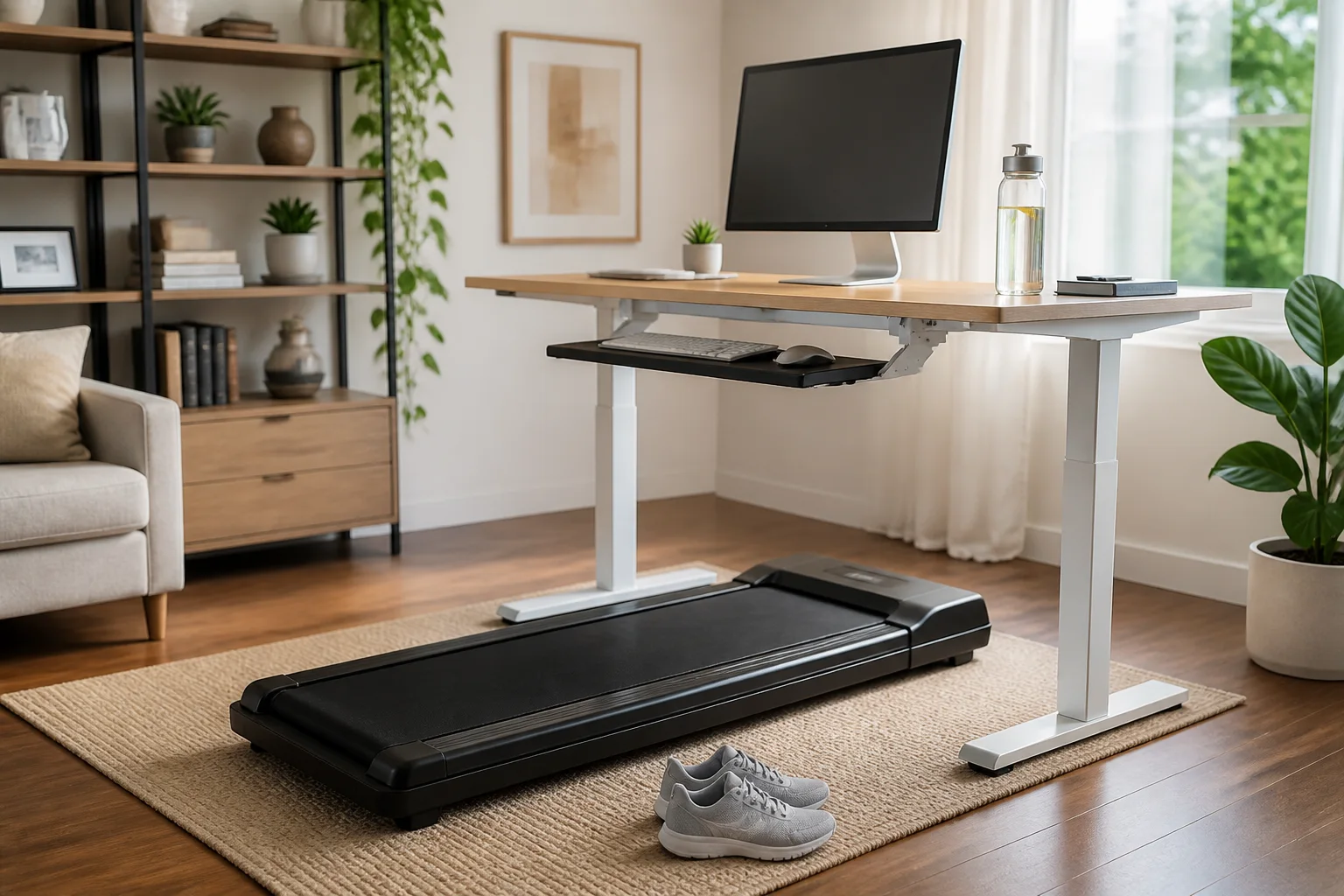
When you step onto a walking pad, your effective height increases by the thickness of the pad (typically 4–6 inches) plus any difference in shoe height compared to standing barefoot. This means your standing desk setting almost certainly needs to go higher.
Pro tip: Save two height presets on your adjustable desk — one for standing without the walking pad, and one for standing on the walking pad. This makes switching seamless.
Keyboard and Mouse Placement
- Keep your keyboard and mouse close to the edge of the desk so your arms aren't reaching forward
- A split or ergonomic keyboard can reduce wrist strain during long walking sessions
- Consider a keyboard tray that attaches under the desk for optimal positioning
- Your mouse should be at the same height as your keyboard — avoid reaching up or down
Monitor Ergonomics
- Single monitor: Center it directly in front of you
- Dual monitors: Angle them in a slight V-shape, with the inner edges meeting at your center line
- Monitor distance: Walk naturally for a minute, then check if you're squinting or leaning forward. Adjust the distance until the screen is comfortable without straining
Footwear Matters
Walking on a treadmill belt for hours in the wrong shoes leads to foot fatigue, blisters, and discomfort. Choose:
- Lightweight walking or running shoes with cushioned soles
- Shoes you'd be comfortable wearing on a 3-mile walk
- Avoid sandals, flip-flops, dress shoes, and heels
- Replace shoes every 6–12 months if you walk daily on the pad
Productivity Tips for Walking While Working
1. Build Up Gradually
Don't try to walk for eight hours on your first day. Start with 30-minute walking sessions, alternating with sitting or standing. Add 15–30 minutes each day until you find your optimal daily walking time. Most experienced users walk two to four hours per day during work.
2. Match Speed to Task
This is worth repeating: slow down for hard tasks, speed up for easy ones. Adjust your speed throughout the day as your work demands shift. There's no single correct speed — fluidity is the goal.
3. Use a Wireless Remote or App
Bending down to adjust speed on the walking pad's console breaks your workflow. A remote control you can keep on your desk (or an app on your phone) makes speed adjustments seamless.
4. Schedule Walking Blocks
Block out specific times on your calendar for walking work. This creates a routine and helps you pick tasks that pair well with walking. For example, schedule email triage and meeting prep during walking blocks, and save intense coding or writing for sitting sessions.
5. Track Your Steps and Patterns
Use a fitness tracker, smartwatch, or the walking pad's built-in counter to monitor your daily steps. Tracking creates accountability and helps you identify which days and times you're most consistent.
6. Take Real Breaks
Walking on a pad is light activity, but your feet and legs still need rest. Step off every 60–90 minutes for a proper break — sit down, stretch, and give your feet a rest. This prevents fatigue and keeps your walking sessions sustainable long-term.
7. Keep Water Nearby
You'll be moving more than usual. Keep a water bottle on your desk and hydrate regularly throughout the day.
Common Mistakes to Avoid
Walking Too Fast, Too Soon
The most common mistake new users make is walking too fast while trying to type. Your brain needs time to adapt to dual-tasking. Start at 1–1.5 mph for the first week, even if it feels absurdly slow. Speed comes naturally with practice.
Ignoring Ergonomics
Many people set up the walking pad but don't adjust their desk height, monitor position, or keyboard placement. This leads to neck strain, sore wrists, and back pain within days — and often causes people to abandon the walking pad entirely. Take 15 minutes to get the ergonomics right from the start.
Trying to Walk During All Tasks
Some work isn't suited for walking. Detailed graphic design, handwriting, precision mouse work (like CAD or photo editing), and tasks requiring intense fine motor control are generally better done while sitting or standing still. Don't force it — step off the pad for these tasks and resume walking when you switch to something more compatible.
Skipping Maintenance
Walking pad belts need periodic lubrication (typically every one to three months with regular use). A dry belt creates friction, increases noise, strains the motor, and can wear out the pad prematurely. Check your manual for lubrication instructions and set a reminder.
Wearing the Wrong Shoes
Socks, bare feet, or hard-soled shoes on a treadmill belt lead to slipping, blisters, and discomfort. Invest in a pair of comfortable walking shoes that you keep near your desk.
Not Having a Stable Desk
A wobbly desk amplifies every vibration from the walking pad, making your monitor shake and your coffee spill. If your standing desk isn't sturdy, add cross-bracing or stabilize it against a wall before using a walking pad.
Forgetting to Step Off
It's easy to get absorbed in work and realize you've been walking for three hours straight. While that's not dangerous for most people, it can leave you fatigued for the afternoon. Set gentle reminders to take walking breaks — yes, breaks from walking. If you're still weighing the pros and cons, our guide on whether walking pads are worth the investment covers the full picture.
How Walking Pads Affect Productivity: What to Expect
The First Week
Expect a slight dip in typing speed and focus as your body and brain adjust to working while moving. This is completely normal. Most people report their typing speed drops by 5–15% initially.
Weeks Two and Three
Your body adapts quickly. By the end of the second week, most users report that walking feels natural and their typing speed has returned to baseline or close to it. You may also notice improved energy levels in the afternoon — the time of day when sedentary workers typically hit an energy slump.
One Month and Beyond
After a month of consistent use, walking while working becomes second nature. Many long-term users report that they feel restless and less focused on days when they don't walk, suggesting that the movement becomes a positive part of their cognitive routine.
What the Research Suggests
Several studies have examined the effect of walking at slow speeds on cognitive performance. The general finding is that walking at speeds below 2 mph has minimal negative impact on cognitive tasks like reading, comprehension, and basic typing. Some research even suggests light walking may enhance certain types of creative thinking, though results vary by task type.
Frequently Asked Questions
Can I use a walking pad during video calls?
Yes, but with caveats. Keep your speed at 2 mph or lower to minimize visible movement on camera. Use a wireless headset with a good microphone — some walking pad noise can be picked up by laptop microphones. If presenting or leading a meeting, consider standing still to avoid any distraction.
What speed should I walk at while typing?
Most people type comfortably at 1.5–2.5 mph. Start at the lower end and increase gradually. If you notice more typos than usual, slow down. Your optimal typing speed while walking is individual — experiment during low-stakes tasks to find yours.
Will a walking pad damage my floors?
Walking pads can potentially scratch hardwood or leave marks on certain floor types due to vibration and heat. A treadmill mat (available for $20–$50) prevents this and also reduces noise. It's a worthwhile investment for any floor type.
How many calories do you burn using a walking pad while working?
Calorie burn depends on your weight, speed, and duration. As a general estimate, a 150-lb person walking at 2 mph burns approximately 150–200 calories per hour. Over a four-hour walking session, that's 600–800 calories — a meaningful daily addition.
Is it hard to type while walking?
There's a short learning curve, typically lasting one to two weeks. During this period, you may type slightly slower and make more errors. Most people adapt fully within two to three weeks and report no ongoing difference in typing accuracy. The key is starting at a very slow speed and increasing gradually.
Do I need a standing desk to use a walking pad?
Yes, practically speaking. You need a surface at the correct height for typing and viewing your monitor while standing on the walking pad. A height-adjustable standing desk is the best option. Some people use fixed-height tables or counters, but these rarely provide correct ergonomic positioning for extended use.
Can I use a walking pad in an office setting?
If you have a private office, absolutely. In shared or open-plan offices, check with your employer first — noise and space are the primary concerns. Some workplaces have embraced walking pads, especially in wellness-focused company cultures. Choose a quiet-operation model if noise is a concern for colleagues.
How long should I walk on a walking pad per day?
Start with 30–60 minutes and build up over a few weeks. Most experienced users walk two to four hours per day, broken into sessions with sitting or standing breaks in between. Listen to your body — if your feet or legs are fatigued, take a longer break. There's no need to walk the entire workday.
Sample Daily Walking-and-Working Schedule
Here's a realistic schedule for someone who's past the adjustment period:
| Time | Activity | Walking Pad |
|---|---|---|
| 8:00 – 9:00 AM | Deep work (writing/coding) | Off or 1.0 mph |
| 9:00 – 10:30 AM | Email and admin tasks | 2.0–2.5 mph |
| 10:30 – 10:45 AM | Break | Off (sit and stretch) |
| 10:45 – 12:00 PM | Meetings and calls | 2.0–3.0 mph |
| 12:00 – 1:00 PM | Lunch break | Off |
| 1:00 – 2:30 PM | Moderate focus work | 1.5–2.5 mph |
| 2:30 – 2:45 PM | Break | Off (sit and stretch) |
| 2:45 – 4:00 PM | Light tasks and wrap-up | 2.0–3.0 mph |
In this schedule, you'd walk for roughly four to five hours and accumulate 8,000–12,000 steps — all without a single dedicated workout.
The Bottom Line
Using a walking pad while working is one of the simplest ways to transform a sedentary workday into an active one. The setup takes an afternoon, the adjustment period lasts about two weeks, and the long-term benefits — more energy, more steps, better health — are well worth the effort.
Start slow, get your ergonomics right, match your speed to your task, and give yourself grace during the learning curve. Within a month, you'll wonder how you ever sat still all day.
Don't have a walking pad yet? Browse our best walking pads of 2026 to find the right model for your desk setup →
Visual Guide Gallery