Walking Pad Desk Setup for Two Monitors (2026 Guide)
This post contains affiliate links. We may earn a commission at no extra cost to you if you purchase through our links — at no extra cost to you.
By Walking Pad Picks Editorial Team
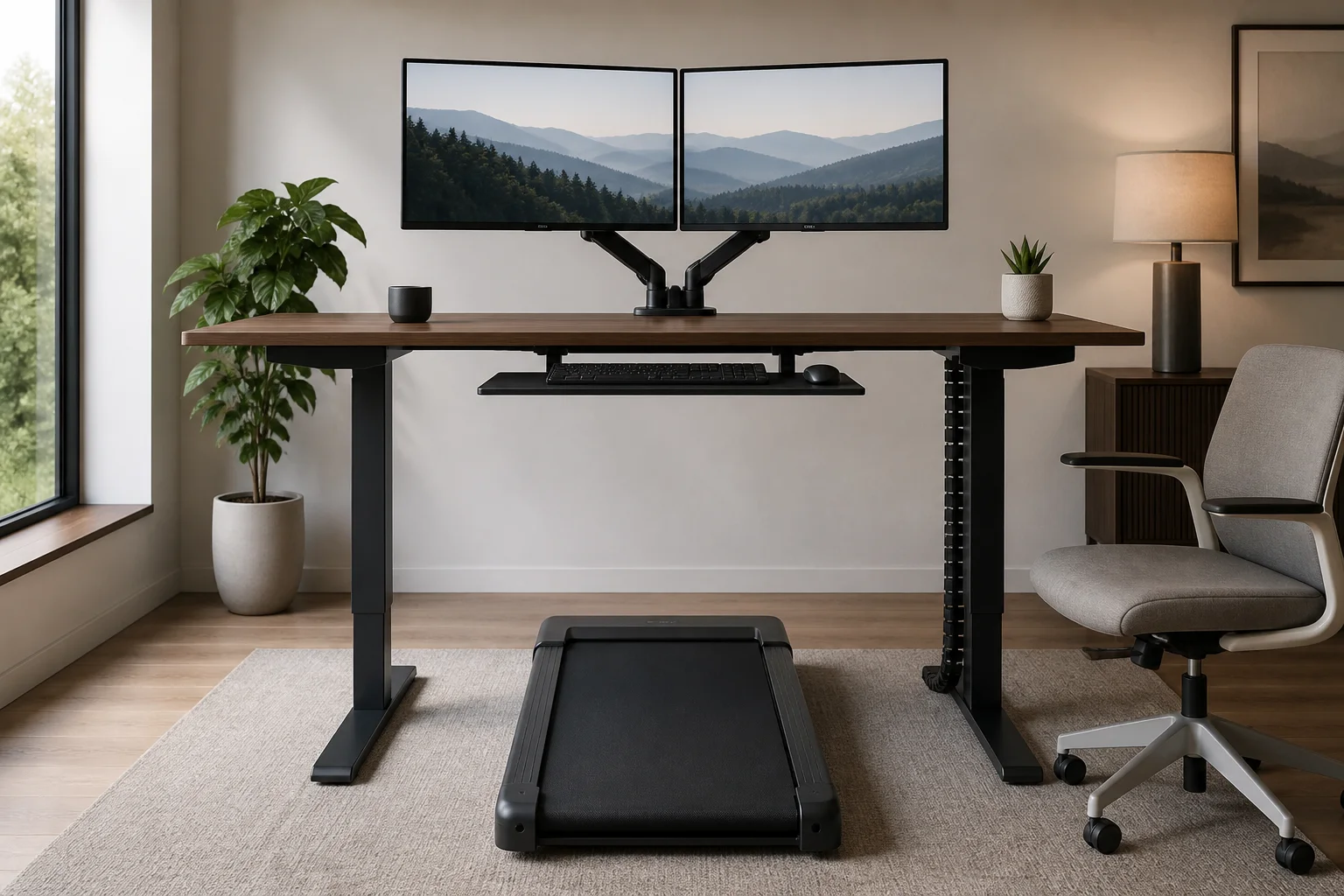
A walking pad desk setup with two monitors is the most productive active workstation configuration available. Done correctly, you walk 8,000–12,000 steps during a standard workday, improve cardiovascular health, and maintain the same dual-screen productivity you rely on at your regular desk. Done incorrectly, you get neck pain, cable chaos, and a walking pad that gathers dust. This guide covers everything: desk sizing, monitor positioning, the best dual monitor stands and arms, cable management, and five vetted product picks with real specs.
Browse Walking Pad Desk Setups on Amazon →
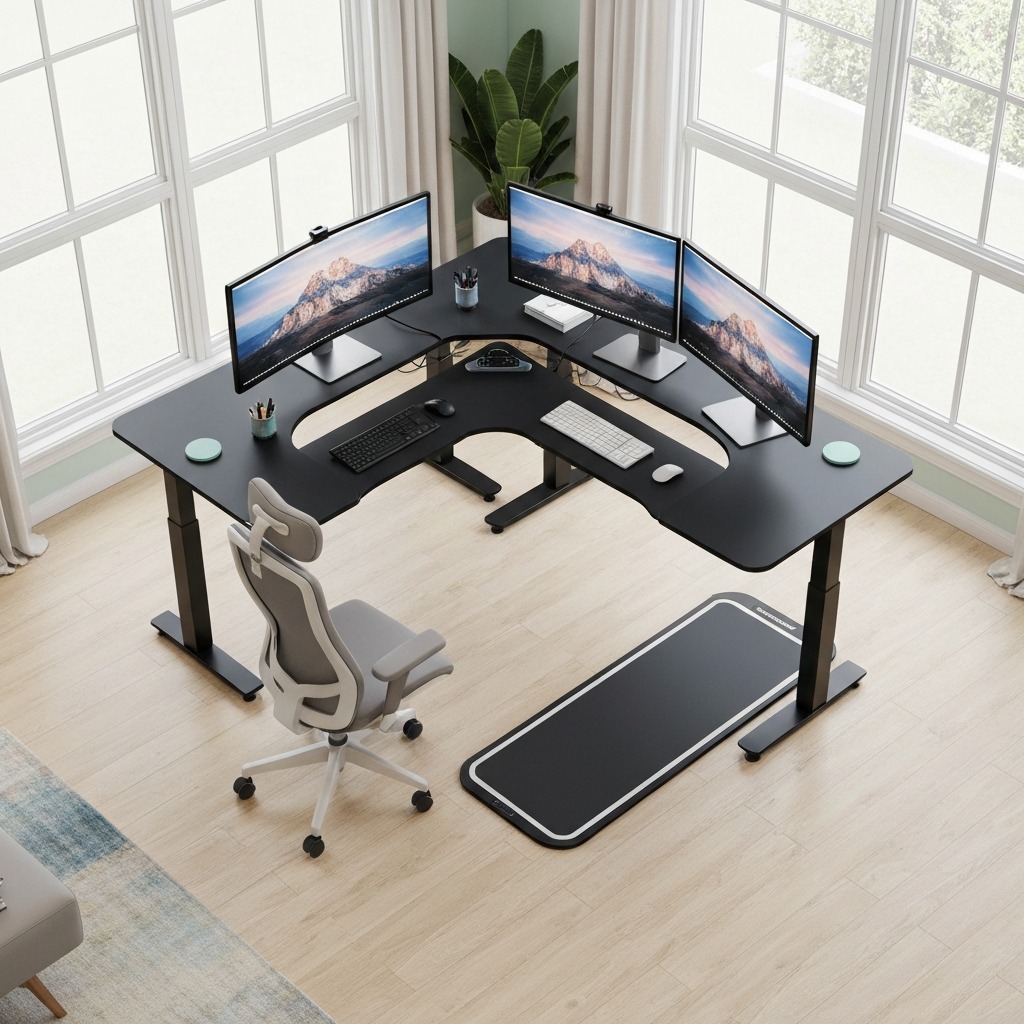
Table of Contents
- Why Two Monitors and a Walking Pad Work Together
- Ergonomic Positioning: The Non-Negotiables
- Desk Requirements for a Dual Monitor Walking Pad Setup
- Top 5 Products for Your Dual Monitor Walking Pad Desk
- Detailed Product Reviews
- Cable Management for Dual Monitor Walking Desks
- Step-by-Step Setup Guide
- Walking Speed and Productivity: Finding Your Zone
- Common Setup Mistakes and How to Avoid Them
- Frequently Asked Questions
- Sources & Methodology
Why Two Monitors and a Walking Pad Work Together
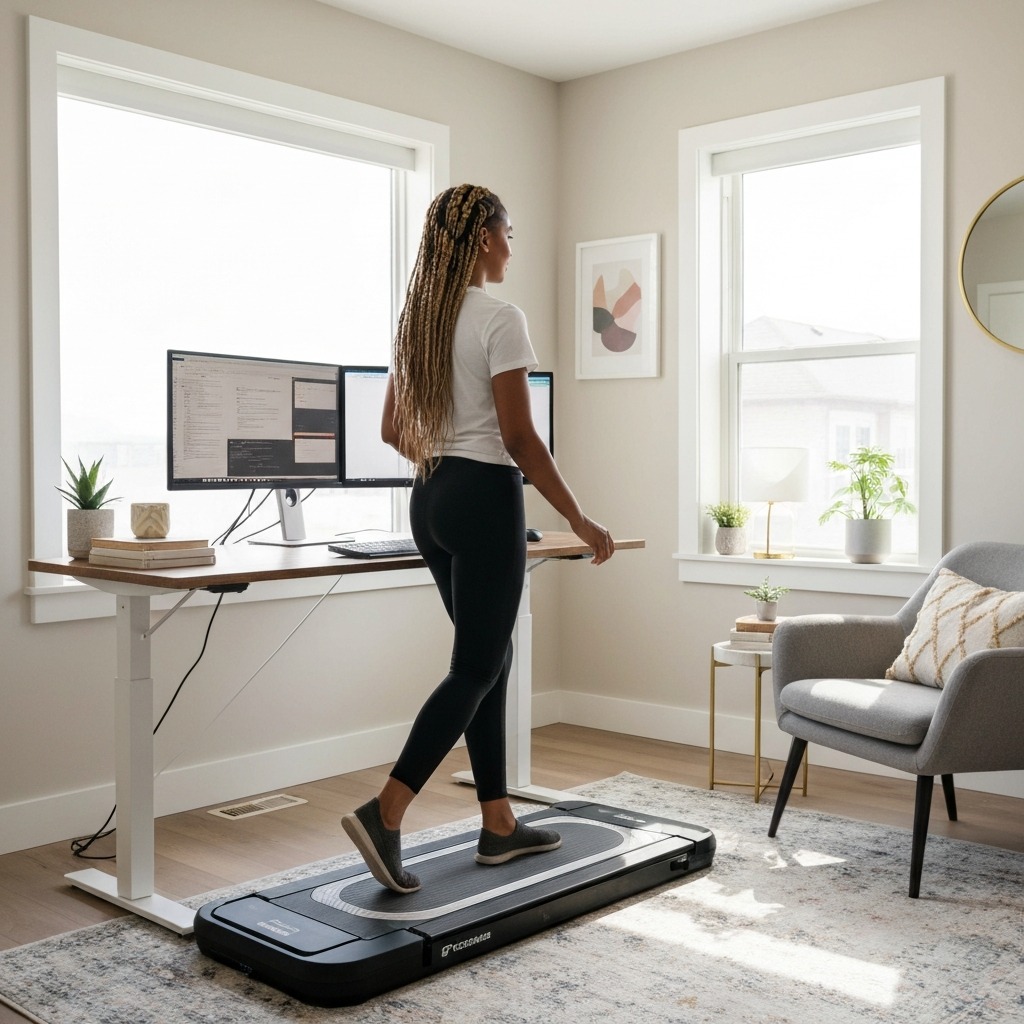
The walking pad desk is already a proven concept. A 2023 study in the Journal of Physical Activity and Health found that knowledge workers using walking pads during work accumulated 7,400 more steps per day than sedentary desk workers, with no measurable decline in cognitive performance for tasks like reading, email, or data analysis.
The case for adding a second monitor is equally well-established. Research from the University of Utah found that dual-monitor workers completed tasks 16–20% faster than single-monitor users, primarily because task-switching between applications requires physical window repositioning on a single screen. With two monitors, your reference material stays on one screen while your active work stays on the other.
The combination is particularly powerful because walking frees your working memory from the physical discomfort of sedentary sitting, allowing you to focus more cognitive bandwidth on what is on your screens. Users consistently report that they can sustain longer focused work sessions on a walking pad than in a chair — not because walking is less demanding, but because walking eliminates the nagging discomfort of prolonged sitting that constantly competes for attention.
If you are still deciding whether a walking pad is right for you, our best walking pad guide covers the top models across all use cases. And if weight management is part of your motivation, our article on whether you can lose weight with a walking pad breaks down the calorie math in detail.
Ergonomic Positioning: The Non-Negotiables
Getting the ergonomics right is the difference between a setup you use for years and one that causes neck pain within a week. These are the non-negotiable positioning rules for a dual monitor walking pad desk.
Monitor Height
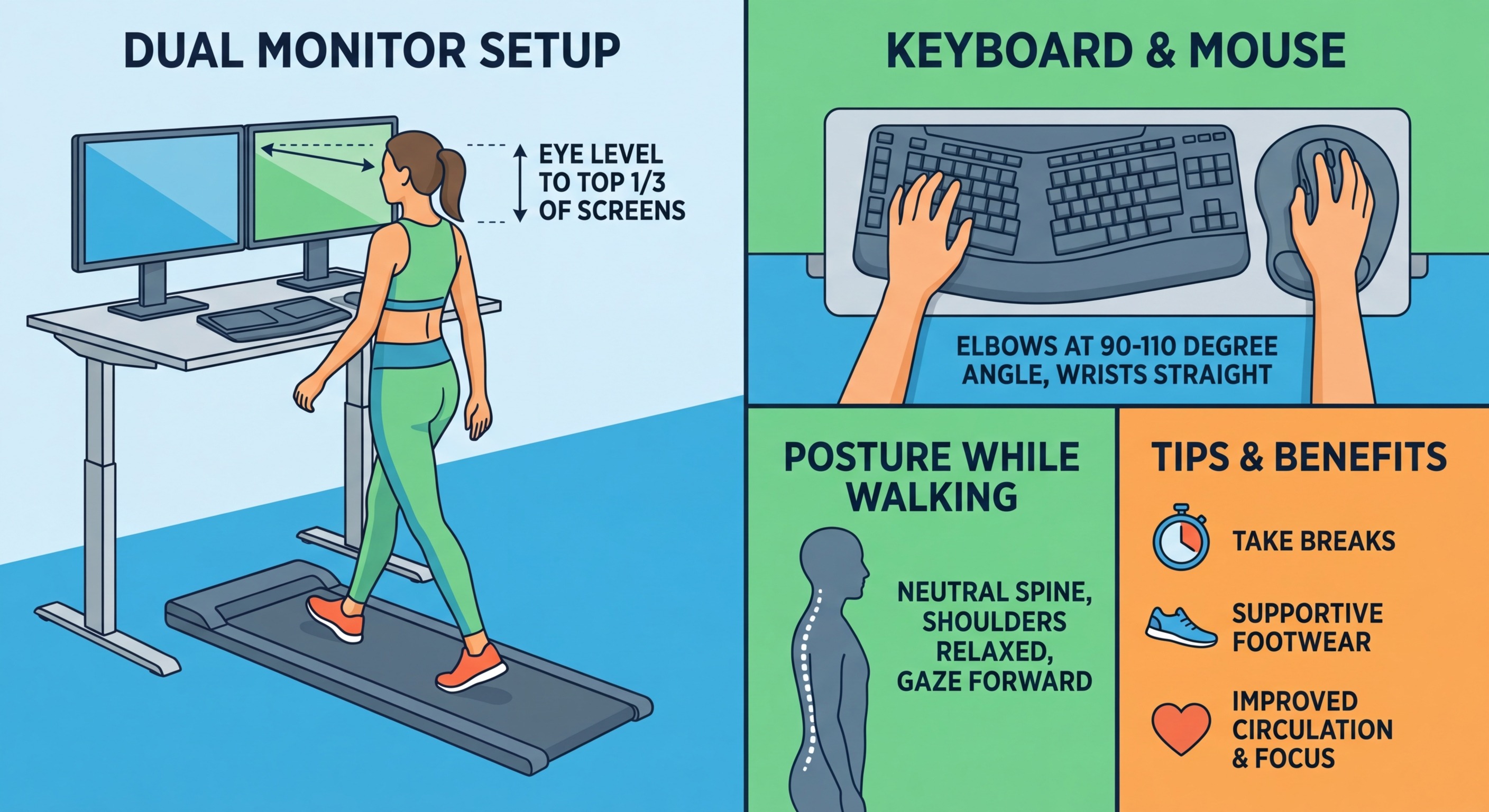
Your monitor's top edge should sit at or just below eye level when you are standing at your walking pad height. This is slightly lower than the standard seated ergonomic recommendation (top edge at eye level) because:
- At walking speeds of 1–2 mph, your head has a slight natural downward gaze compared to rigid seated posture
- The walking motion keeps your postural muscles engaged, reducing the impact of looking slightly downward
- A too-high monitor forces the neck into sustained extension — which causes more pain during walking than during static standing
Measurement guide:
- Stand on your walking pad with the pad running at your typical walking speed
- Look straight ahead — note where your gaze naturally lands
- Position the monitor centre approximately 5cm below your natural gaze line
- The top edge of the monitor should sit 0–5cm below the top of your head
For a person of average height (170cm) at a typical standing desk height (107cm), this places the monitor centre at approximately 98–105cm from the floor.
Monitor Distance
Position monitors so the screen centre is 50–70cm from your face. This is the same arm's-length rule used for seated setups. At walking speeds, this distance is comfortable for both reading and detailed work.
Monitors placed closer than 45cm cause eye strain during extended sessions. Monitors further than 80cm make reading smaller text uncomfortable and cause users to lean forward — which compromises walking pad posture.
Dual Monitor Layout
For a walking pad setup, primary and secondary monitor placement matters more than at a seated desk because your body position is less flexible during walking.
Recommended layout:
- Place your primary monitor (the one you look at 70%+ of the time) directly in front of you, centred with your body
- Place your secondary monitor immediately adjacent, with zero gap between screens
- Set both monitors at the identical height — different heights force head tilting during transitions
- Maximum angle between screens: 30 degrees. More than 30 degrees requires head rotation that causes neck fatigue during walking
What to avoid: Placing the secondary monitor significantly to one side. During walking, sustained head rotation to one side creates rotational neck strain that does not occur during static sitting.
Keyboard and Mouse Position
Your keyboard should sit at elbow height — with your arms roughly parallel to the floor. Your shoulders should stay relaxed, not elevated.
The walking motion naturally causes small amounts of vertical body movement. Your wrists should hover slightly above the keyboard rather than resting on a wrist rest, which allows your arms to absorb this minor movement rather than transmitting it to your typing accuracy.
For a detailed framework on ergonomic desk setup for prolonged sitting and how walking pad setups differ from traditional ergonomic workstations, Office Chair Guides covers the static seated counterpart well.
Desk Requirements for a Dual Monitor Walking Pad Setup
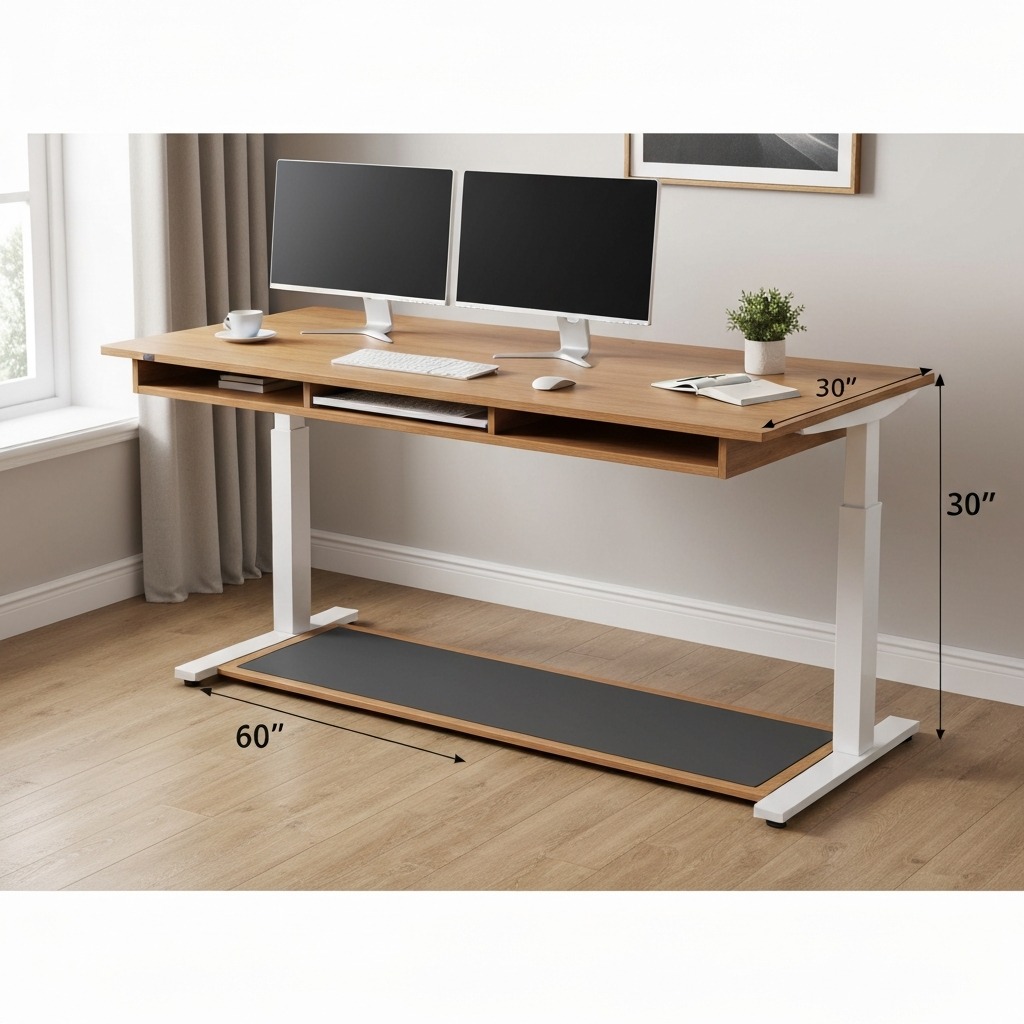
Not every standing desk works well with a walking pad. Here is what to look for.
Surface Size
Minimum: 120cm wide × 60cm deep for two 24-inch monitors on a dual stand Recommended: 140cm wide × 70cm deep for two 27-inch monitors on a dual arm
Desk width matters because dual monitors side-by-side require significant horizontal real estate. A 100cm desk forces monitors to overlap with your keyboard area or sit so close together that the viewing angles become uncomfortable.
Desk depth matters because monitor stands (as opposed to arms) add 20–25cm of depth to the monitor base, reducing the effective workspace depth. If you use a monitor arm, you recover that depth and can work with a shallower (60cm) desktop.
Height Adjustment Range
A walking pad typically raises your standing height by 8–15cm above your barefoot standing height (depending on the walking pad platform thickness). Your desk must accommodate this.
What to look for: Electric height adjustment with a range of at least 70–120cm. This range covers both seated work (for days you want to use a chair) and walking pad heights for users from 155cm to 195cm tall.
Desks with a manual height adjustment (crank-operated) work but are inconvenient for daily desk-to-walking-pad transitions. Electric desks allow one-touch adjustment to preset heights — a significant quality-of-life improvement.
Frame Stability
At walking speeds of 1–2 mph, the walking pad creates some vibration. A sturdy desk frame prevents this vibration from causing monitor wobble, which is both distracting and fatiguing over long sessions.
What to look for: Steel frame construction with crossbar reinforcement. C-frame desks (single upright leg on each side) are more prone to wobble than rectangular four-leg frames. T-frame desks (two uprights per side) are the most stable but less common.
Top 5 Products for Your Dual Monitor Walking Pad Desk
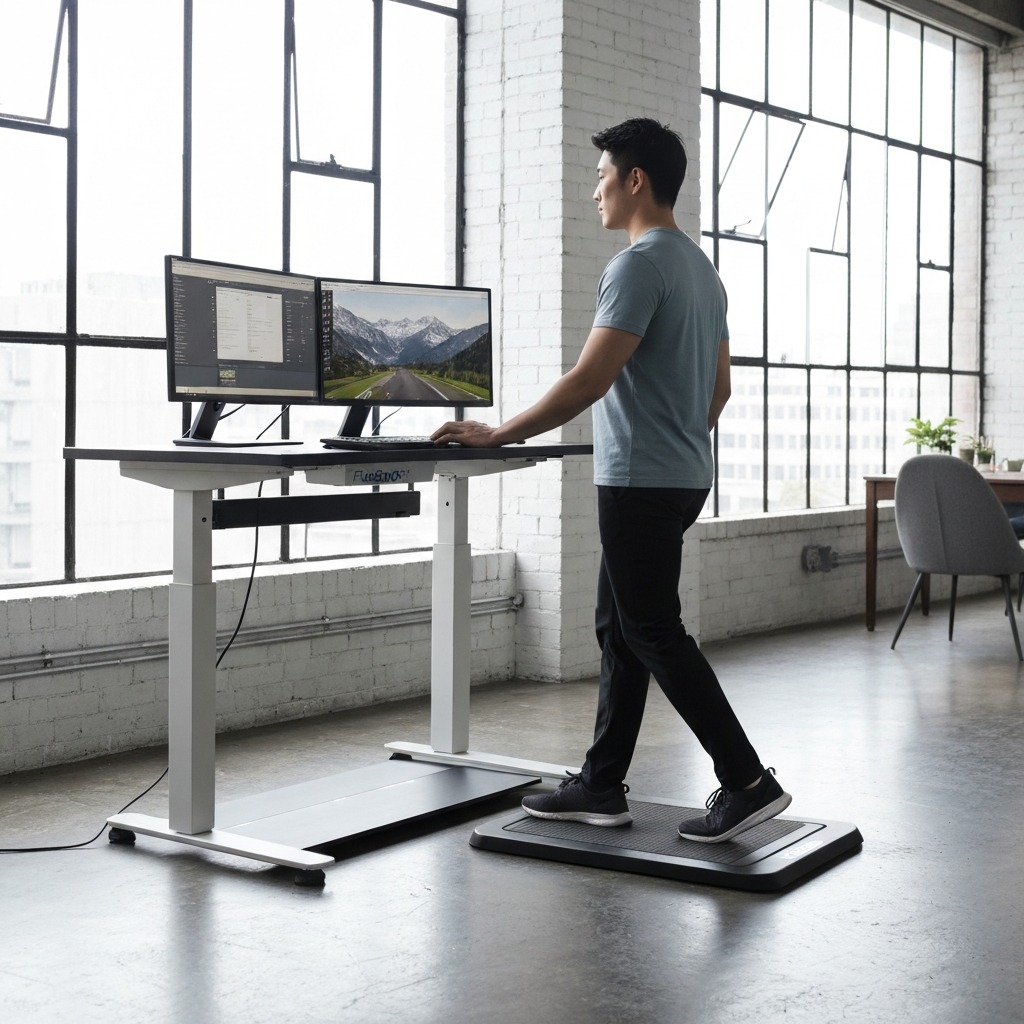
FlexiSpot EF1 Standing Desk
Height range: 71–121cm electric
Surface: 120 × 60cm (larger options available)
Frame: Steel dual-beam, anti-collision
Weight capacity: 70kg
Check Price on Amazon →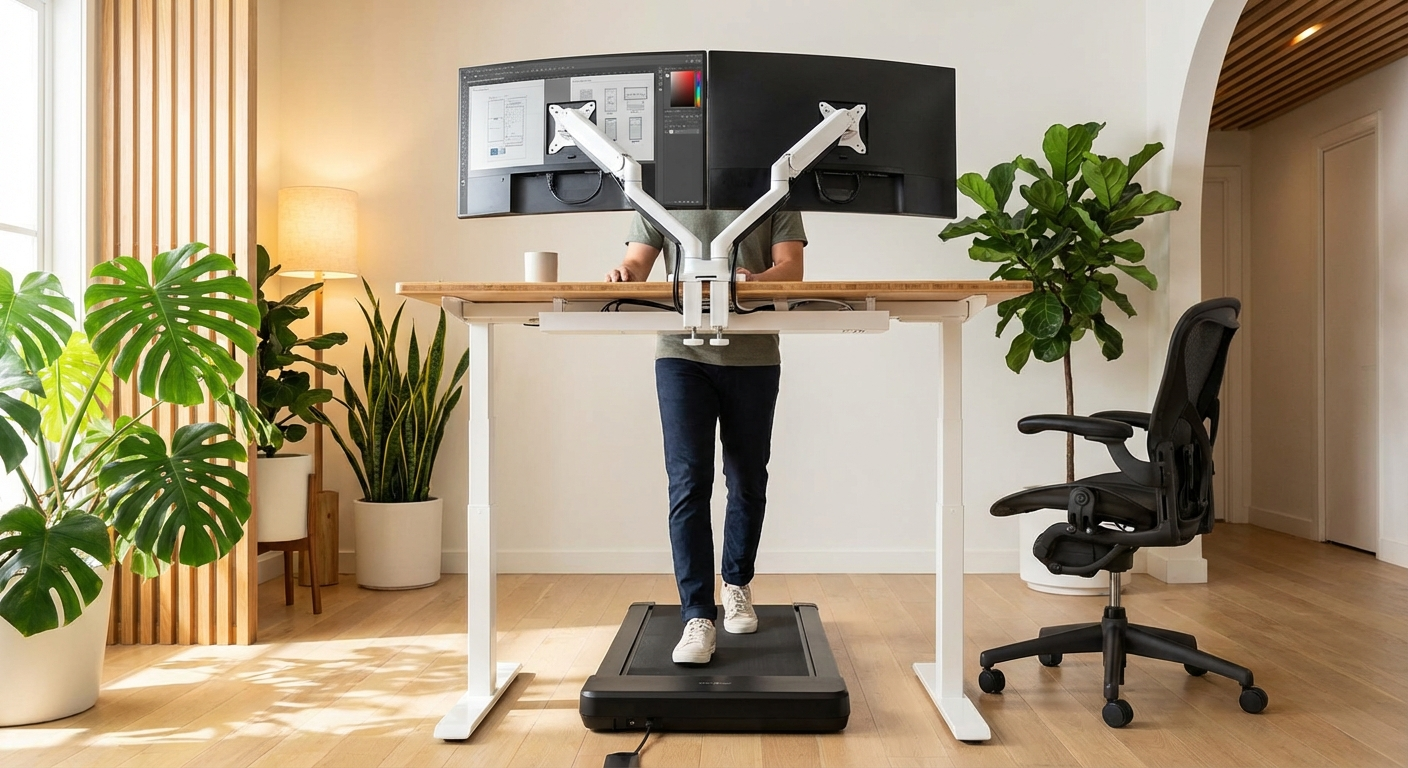
VIVO Dual Monitor Stand
Fits: Monitors up to 27 inches
Adjustment: Tilt ±15°, swivel ±45°
Base: Weighted desk base, no clamp needed
Weight capacity: 4.5kg per screen
Check Price on Amazon →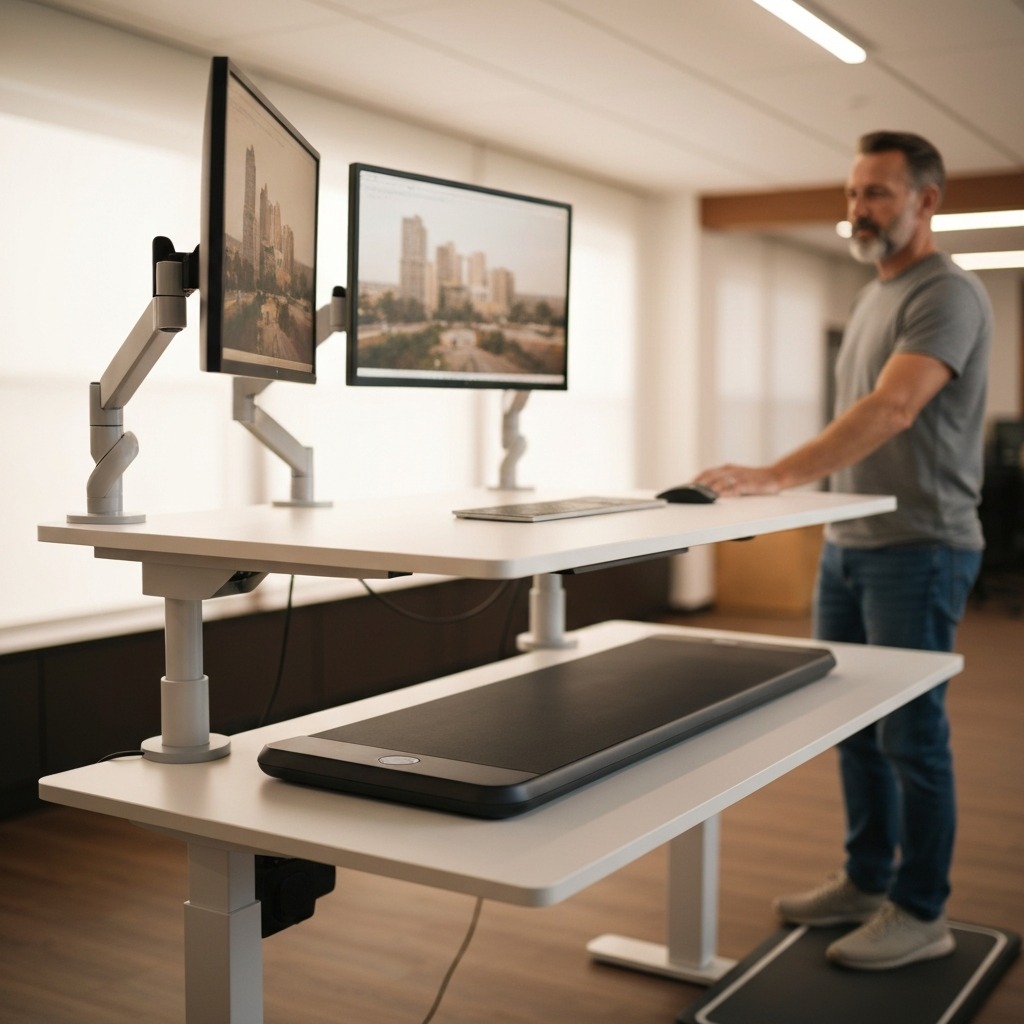
Ergotron LX Dual Monitor Arm
Fits: Monitors up to 34 inches / 9kg each
Movement: Full articulation, 45° tilt, 360° rotation
Mount: Desk clamp or grommet
Cable management: Internal routing
Check Price on Amazon →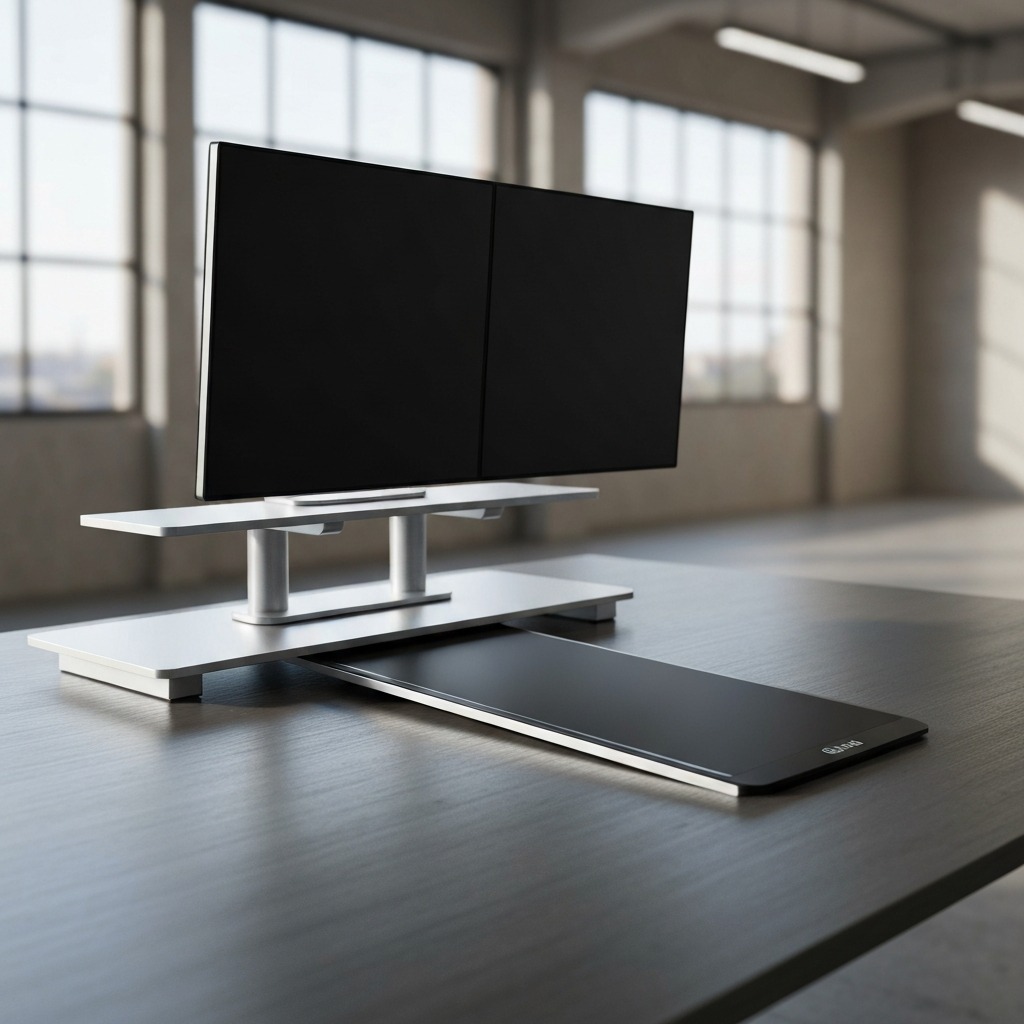
EleTab Monitor Stand
Fits: Up to 27-inch screens
Height options: 4 adjustable heights
Base storage: Keyboard slides underneath
Material: Aluminium, anti-slip pads
Check Price on Amazon →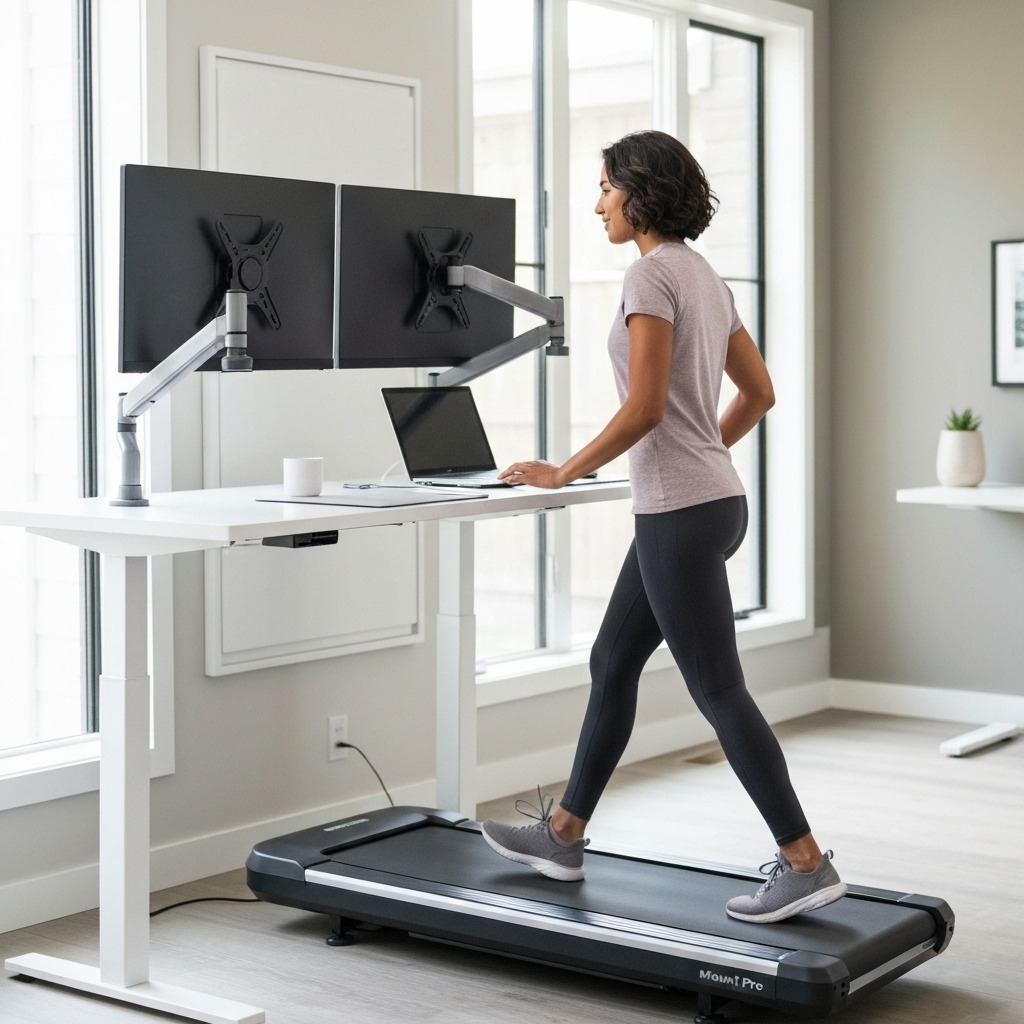
MOUNT PRO Dual Monitor Mount
Fits: 13–27 inch monitors, up to 8kg each
Joint tension: Tool-adjustable per arm
Mount: C-clamp or grommet
Cable routing: Clip management system
Check Price on Amazon →Detailed Product Reviews
1. FlexiSpot EF1 Standing Desk — Best Desk for Walking Pad Dual Monitor Setup
The FlexiSpot EF1 is the most popular entry-level electric standing desk for walking pad setups, and for good reason. It hits the three requirements for a walking pad desk squarely: sufficient height range, solid frame stability, and a surface wide enough for dual monitors.
Height range: 71–121cm
This range covers walking pad use for adults from approximately 155cm to 195cm tall. The standard walking pad adds 8–12cm to your floor height, meaning the effective range for walking pad use is approximately 79–133cm — comfortably within the EF1's adjustment range. If you are very tall (above 190cm), verify that the EF1's maximum height at your walking pad height gives you elbow-height keyboard position.
Surface options:
The EF1 comes in 120 × 60cm, 140 × 70cm, and 160 × 80cm surface options. For dual 24-inch monitors on a stand, the 120cm width is sufficient. For dual 27-inch monitors or if you want workspace to one side of the monitors, choose the 140cm option. The 160cm surface is generous but may overhang a typical walking pad by an awkward amount if positioned against a wall.
Frame stability:
The EF1 uses a dual-beam crossbar in the frame, which significantly reduces horizontal wobble compared to C-frame designs. At walking speeds of 1–2 mph, there is no perceptible monitor wobble when monitors are mounted on a quality dual stand or arm. If you mount monitors on a freestanding stand (not clamped to the desk), you may notice some sympathetic vibration during walking — this is the stand, not the desk. Switching to a clamp-mounted arm eliminates this.
Anti-collision system:
The EF1 includes an automatic collision detection system that stops motor movement and reverses if the desk encounters an obstacle during height adjustment. This prevents damage when the desk is lowering onto objects (cables, keyboard, walking pad frame) placed on the surface or crossing into the height adjustment path.
Motor and noise:
The EF1 motor operates at approximately 45 dB — quieter than your walking pad at typical speeds. Height adjustments take 15–25 seconds across the full range. The controller has four programmable memory positions: set these to your seated height, standing height, walking pad height, and a custom position.
Bottom line: The EF1 is the best value electric standing desk for a walking pad dual monitor setup. Build quality is solid for a desk in this price range, and the 120cm minimum surface size accommodates dual monitors without compromise.
Check FlexiSpot EF1 Price on Amazon →
2. VIVO Dual Monitor Stand — Best Budget Stand for Walking Pad Desks
The VIVO dual monitor stand is the most popular dual monitor solution for walking pad setups on a budget. It uses a freestanding weighted base — no desk clamp required — which makes it easy to reposition and works with desktops that have an edge profile incompatible with clamp mounts.
Design and adjustment:
The VIVO stand uses a single centre post with two independent articulating arms. Each arm provides ±15° of tilt and ±45° of swivel. Height is adjusted by loosening a bolt at the post, moving the arm to the desired height, and retightening. It is not tool-free but takes under a minute per adjustment.
For walking pad use, you will set the height once based on your walking pad height and rarely change it. The tool-required adjustment is not a significant limitation in practice.
Screen size compatibility:
The VIVO stand accommodates monitors up to 27 inches with VESA 75×75 or 100×100 mounting patterns. If your monitors are larger than 27 inches or use a non-standard VESA pattern, verify compatibility before ordering.
Weight per screen: 4.5kg maximum. Most 24–27 inch monitors weigh 3–5kg, so the lighter end of common monitors are within spec. Check your monitor's weight in the spec sheet if it is unusually large or thick.
Stability on walking pad desks:
This is where the VIVO stand has a limitation. Because it is freestanding (not clamped), the walking pad's minor vibration can cause the stand to wobble slightly. The wobble is small and most users accommodate it without issue, but if you find it distracting, switch to a clamp-mounted arm like the Ergotron LX or MOUNT PRO.
Desktop footprint:
The VIVO stand's base occupies approximately 35cm of desk depth. This is the primary trade-off versus a desk clamp arm — you lose 35cm of usable desk depth to the stand's base. On a 60cm deep desk, this leaves only 25cm for your keyboard and workspace, which is tight. On a 70cm or deeper desk, the footprint is manageable.
Bottom line: Best budget option for dual monitors at a walking pad desk, with the caveat that a 70cm deep desk or deeper works best. If desk depth is limited, step up to the MOUNT PRO or Ergotron LX arm instead.
Check VIVO Dual Monitor Stand Price on Amazon →
3. Ergotron LX Dual Monitor Arm — Best Premium Option for Walking Desks
The Ergotron LX Dual Monitor Arm is the gold standard for monitor mounting in any walking pad desk setup. Its internal cable routing, tool-free height adjustment, and precise counterbalance system make it the most ergonomically capable option available.
Why the Ergotron LX is worth the premium for walking pad setups:
- Height adjustment without tools. You can raise or lower monitors by simply pushing them to the new position. The LX's counterbalance spring matches the weight of your monitor and holds it at any height. This is important for walking pad setups because you may want to adjust monitor height slightly as you switch between speeds or users
- Genuine vibration isolation. The LX arm absorbs minor walking vibration through its articulating joints. Monitors stay still even when the desk surface flexes slightly. This is a significant advantage over rigid freestanding stands
- Internal cable routing. Cables route through the arm's internal channel, creating a completely clean look and ensuring no loose cables hang near your walking area
- Full articulation. Each arm extends, retracts, tilts, and rotates independently. You can position each monitor at a slightly different angle — useful for the primary/secondary monitor setup recommended for walking pad use
Clamp and grommet mounting:
The LX attaches to your desk via a C-clamp (no hole required) or through a grommet hole if your desk has one. The C-clamp works on desktops up to 6cm thick. FlexiSpot EF1 desktops are approximately 2.5cm thick — well within spec.
VESA compatibility: 75×75 and 100×100mm. Compatible with virtually all monitors made after 2010.
Screen size and weight: Up to 34 inches, 9kg per arm. This covers all mainstream single monitors including ultrawide 34-inch screens, though the dual configuration is best suited to two monitors of the same size.
Bottom line: If you can budget for it, the Ergotron LX Dual is the best monitor mounting solution for a walking pad desk. The vibration isolation, internal cable routing, and tool-free adjustability are genuine quality-of-life improvements that you notice every day.
Check Ergotron LX Dual Price on Amazon →
4. EleTab Monitor Stand — Best Adjustable Riser for Compact Desks
The EleTab Monitor Stand is a hybrid between a riser and a stand: it raises your monitors to standing desk height while also providing keyboard storage underneath when the pad is deployed. This is the most compact footprint solution for dual monitor walking pad desks with limited surface space.
Four adjustable heights:
The EleTab offers 4 height settings (approximately 11, 14, 17, and 20cm above the desk surface). For a walking pad desk, choose your height based on where the monitors need to be relative to your eye level at walking pad height. Most users on a standard walking pad at a desk set to 100–110cm height find the 17–20cm EleTab height positions monitors correctly.
Keyboard slide-under:
When the walking pad is deployed and the keyboard is not needed (e.g., during reading or video calls), the keyboard slides under the EleTab base, freeing the desk surface. This is a minor convenience but appreciated in smaller workspaces.
Aluminium construction:
The EleTab uses an aluminium alloy frame with anti-slip silicone pads on all contact points. At 2.5kg, the stand is heavy enough to be stable during walking pad use without the monitor base tipping.
Limitation: fixed horizontal position
Unlike arms, the EleTab does not allow horizontal adjustment between the two monitors. The monitors must both sit on the riser platform, and their lateral position is set by the riser width. The EleTab accommodates two monitors up to 27 inches side by side, but you cannot angle one monitor more than the other. This limits the primary/secondary monitor angle adjustment recommended for walking pad setups.
Bottom line: Best for users with compact desk spaces who want a stable, affordable solution and are comfortable with a fixed dual monitor layout. If you need individual monitor angle adjustment, choose the MOUNT PRO or Ergotron LX arm instead.
Check EleTab Monitor Stand Price on Amazon →
5. MOUNT PRO Dual Monitor Mount — Best Mid-Range Arm for Walking Desks
The MOUNT PRO Dual Monitor Mount sits between the VIVO stand and the Ergotron LX in both price and features. It is a clamp-mounted dual arm with tool-adjustable tension — addressing the main limitation of freestanding stands (vibration instability) at a lower price point than the Ergotron.
Tool-adjustable tension:
Each arm's tension is set with an Allen key at the joint. This is slightly less convenient than the Ergotron's tool-free counterbalance, but it is a one-time setup operation. Once set correctly for your monitor's weight, the arm holds position reliably and does not drift during walking pad sessions.
Cable management:
The MOUNT PRO includes clip-on cable management along each arm rather than internal routing. This is functional — cables stay organised and off the desk — but lacks the completely clean look of the Ergotron's internal channel. For walking pad setups, the clip system is adequate as long as you use velcro ties (not zip ties) to keep cables from swinging loose.
VESA compatibility: 75×75 and 100×100mm. Compatible with monitors from 13–27 inches, up to 8kg per arm.
C-clamp or grommet mount: Same as the Ergotron — clamp works on desktops up to 6.5cm thick, or route through a grommet hole.
Screen size range: 13–27 inches. If you have monitors larger than 27 inches, choose the Ergotron LX instead.
Bottom line: The best value clamp-mounted dual arm for walking pad desks. If you want the stability benefits of a clamp arm at a price below the Ergotron LX, the MOUNT PRO delivers. The tool-required tension adjustment is the only meaningful compromise versus the premium option.
Check MOUNT PRO Dual Monitor Mount Price on Amazon →
Cable Management for Dual Monitor Walking Desks
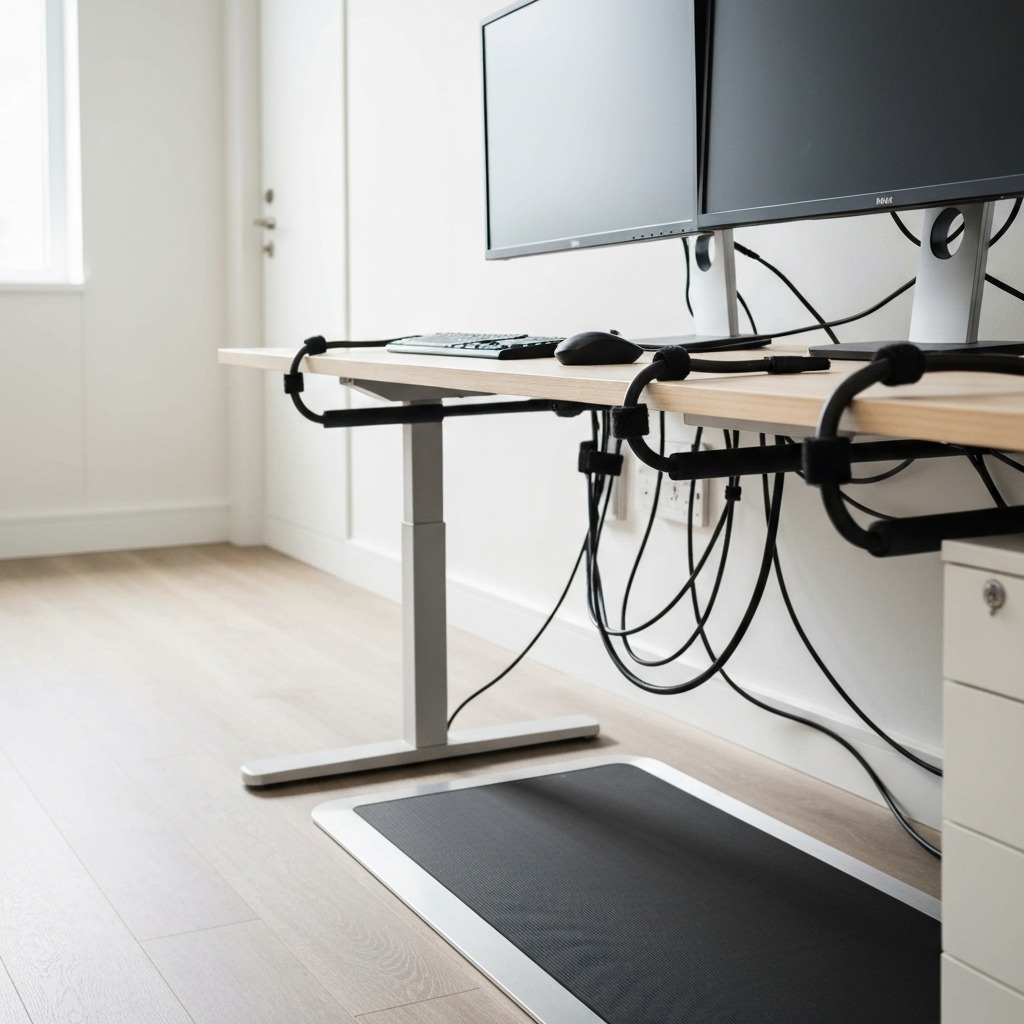
Cable management is the most overlooked aspect of a walking pad dual monitor setup — and the most important for safety. Loose cables in the walking zone are a genuine trip hazard. Here is the system that works.
The Core Principle: Zero Cables Below Desk Level
All cables should route from your monitors down through your monitor arm or stand, across the back of the desk, and to their destinations — without any cable dropping below the desk surface into the walking zone.
Step-by-Step Cable Management System
Step 1: Use a single USB-C dock
A quality USB-C dock (or Thunderbolt dock) reduces your cable runs from dual monitors significantly. Instead of two HDMI cables, a power cable, and a USB hub running separately, you have:
- One USB-C cable from the dock to your laptop
- HDMI or DisplayPort from the dock to each monitor
- One power cable to the dock
This reduces the number of cables crossing your workspace by approximately 60%.
Step 2: Route cables through your monitor arm
If you are using the Ergotron LX or MOUNT PRO arm, route your monitor cables (HDMI/DisplayPort + power) through the arm's internal channel or clip system from the monitor head to the desk clamp. This keeps all monitor cables above desk level and contained to the arm structure.
Step 3: Bundle at the desk crossing
Where cables transition from the monitor arm/stand to the back desk edge, use velcro cable ties to bundle them together. Velcro is preferred over zip ties because it can be opened and closed without cutting when you need to add or remove a cable.
Step 4: Cable raceway along the desk back edge
A cable raceway (a rectangular channel that mounts along the back of the desk) conceals the horizontal cable run from the monitor arm to the left or right side of the desk where cables drop to the floor. Use a raceway rated for the number of cables you are running.
Step 5: Floor cable management
At the desk edge, cables drop to the floor and run to wall outlets, your PC case, or a power strip. Keep this run tight against the wall, behind the walking pad — not in front of it. Use adhesive cable clips to attach the run to the baseboard.
Step 6: Wireless keyboard and mouse
If you have not already switched to wireless peripherals, do so now. A wireless keyboard and mouse eliminate two cable runs from the desk surface entirely, making cable management significantly simpler and removing potential trip hazards.
Step-by-Step Setup Guide
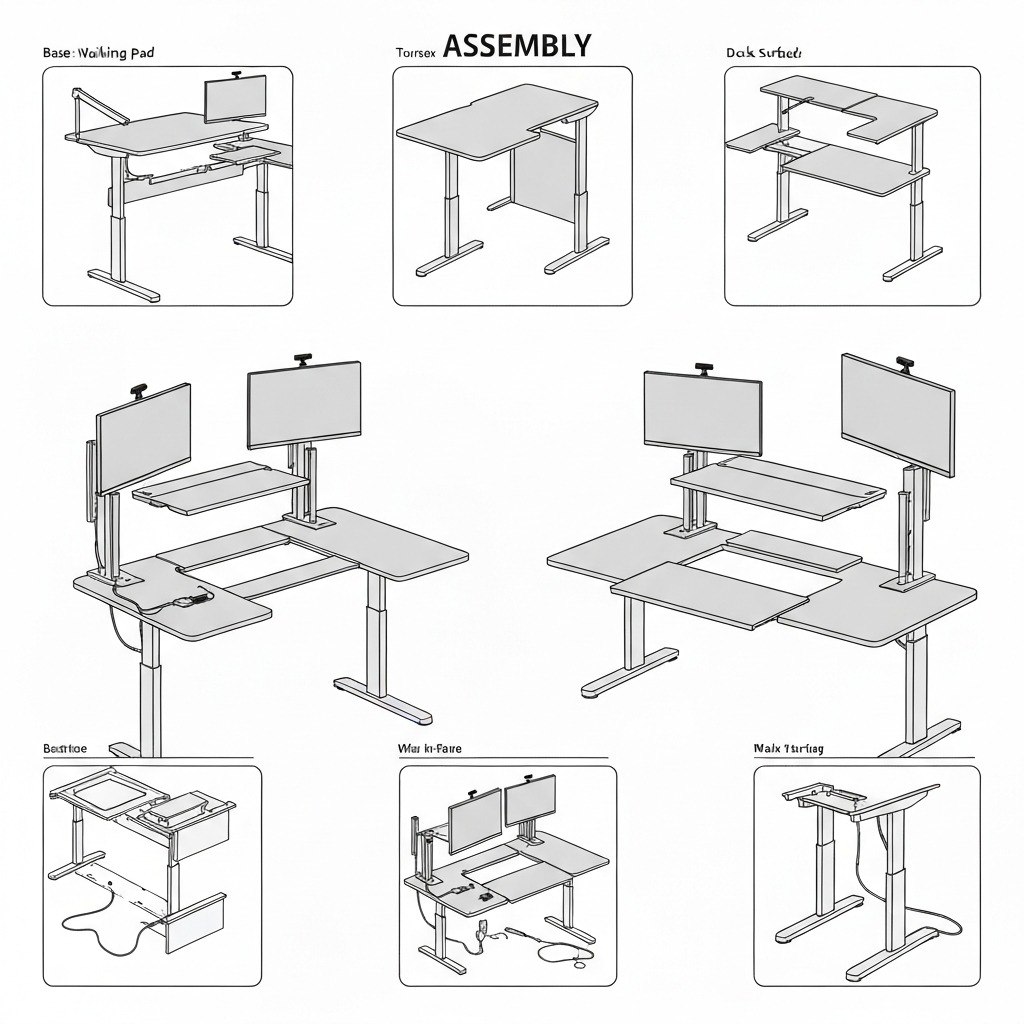
Follow this sequence for setting up your walking pad dual monitor desk from scratch.
1. Position the Walking Pad First
Place your walking pad before assembling the desk above it. The walking pad's position determines the desk's position — not the other way around.
- Allow at least 50cm of clearance behind the walking pad (the standard safety recommendation)
- Allow 30cm on each side for easy stepping on and off
- The walking pad should be on a flat, hard surface (or a walking pad mat on carpet)
2. Set Your Desk Height
With the walking pad in position, step onto it and stand naturally. Measure the height from the floor to your elbow (arm hanging relaxed, elbow bent to 90°). This is your target desk height.
Adjust your standing desk to this height. If you are using the FlexiSpot EF1, program this height into memory position 3 (position 1 = seated, position 2 = standing without pad, position 3 = walking pad height).
3. Mount Your Monitor Arm or Stand
For clamp-mounted arms (Ergotron LX, MOUNT PRO): attach the clamp to the desk before mounting monitors. Verify the clamp does not interfere with desk movement.
For the VIVO freestanding stand: position it in the centre of the desk at the back edge.
4. Mount Monitors and Set Height
Mount monitors to the arm/stand. Set both monitors to identical heights using the ergonomic guidelines above (top edge at or just below eye level).
Step back onto the walking pad, start it at your typical speed, and check the monitor position. Small adjustments at walking speed are normal — your gaze at walking speed may differ slightly from your standing gaze.
5. Route All Cables
Follow the cable management system above. Complete this step before your first walking session. Do not walk with loose cables in the walking zone.
6. Test at Walking Speed
Walk at your typical working speed (1–2 mph) for 5 minutes before relying on the setup for real work. Check:
- Monitor stability (no annoying wobble)
- Keyboard height feels natural
- All cables are clear of your walking area
- No discomfort in neck, shoulders, or wrists
Adjust as needed before your first full session.
Walking Speed and Productivity: Finding Your Zone
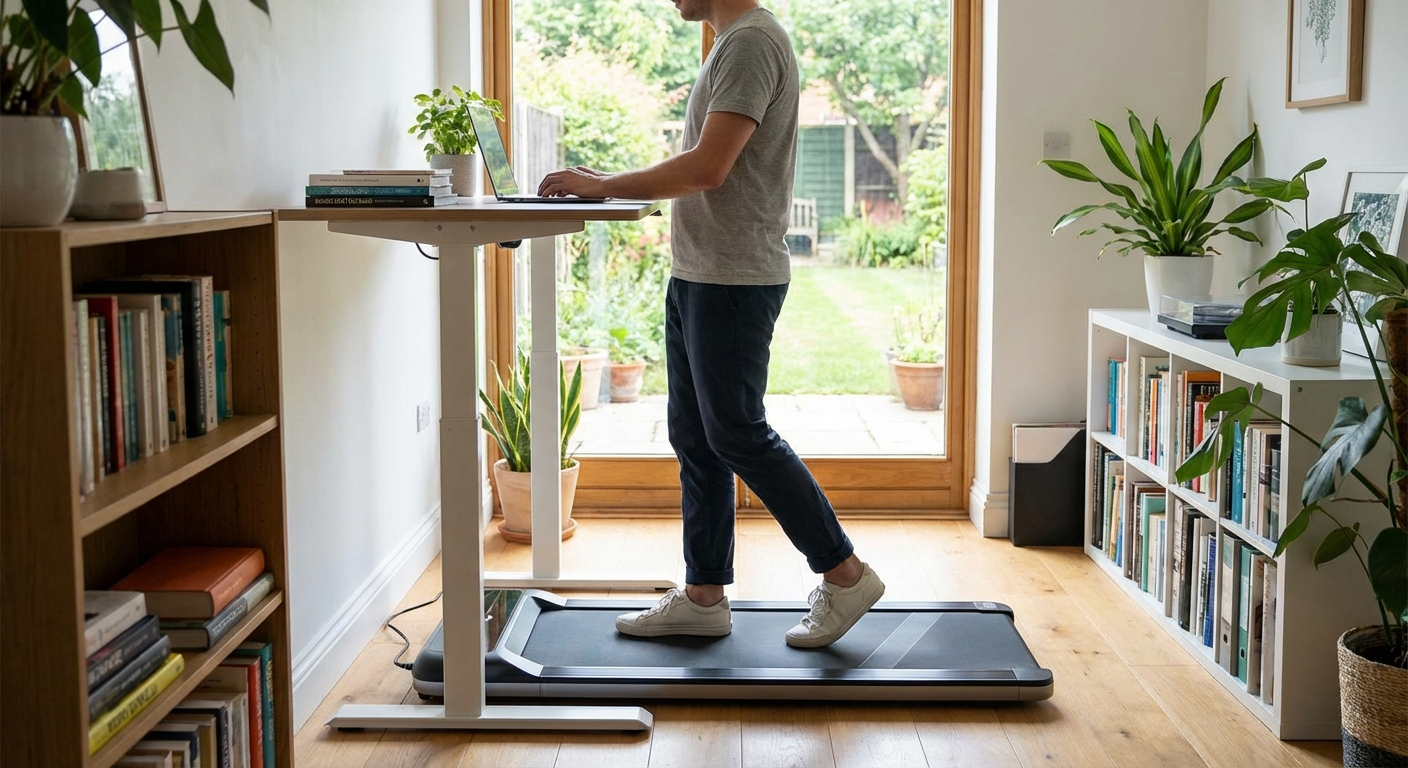
Not all work is equally compatible with all walking speeds. Here is the practical framework.
1.0–1.5 mph (1.6–2.4 km/h): Knowledge-intensive work
At this speed, your body movement is minimal and your upper body is essentially stable. This range is suitable for:
- Writing long-form content
- Code review and programming
- Financial analysis and spreadsheet work
- Video calls (appears seated to others)
- Detailed design work
1.5–2.0 mph (2.4–3.2 km/h): Moderate focus tasks
At this speed, walking becomes more noticeable to your body but your cognitive performance remains high. Suitable for:
- Email and messaging
- Reading documents and research
- Video calls where your movement is visible and acceptable
- Data entry with simple inputs
2.0–2.5 mph (3.2–4.0 km/h): Light tasks only
Typing accuracy drops noticeably at this speed. Suitable for:
- Listening to meetings or podcasts
- Reviewing presentations
- Audio calls (no typing required)
Above 2.5 mph: Not recommended for desk work
Body movement at this speed is significant enough to compromise any keyboard work and most mouse work. Reserve speeds above 2.5 mph for exercise-only walking sessions.
The productivity revelation: Most walking pad users initially expect their productivity to drop significantly. The research does not support this. A 2023 meta-analysis in Frontiers in Psychology found that walking at 1–2 mph had no statistically significant effect on cognitive performance compared to sedentary sitting for tasks like reading comprehension, verbal fluency, and working memory — the core skills of most knowledge work.
If you are considering a folding walking pad for compact storage alongside your desk setup, our best folding walking pad for easy storage guide covers the top fold-flat models that pair well with a dual monitor standing desk.
Common Setup Mistakes and How to Avoid Them
Mistake 1: Setting the desk height for standing, not walking
Your optimal desk height while walking on a pad is typically 2–5cm higher than your optimal standing height without the pad. This is because the walking motion slightly lowers your shoulder height relative to your elbow. If you use your standing-without-pad height for walking pad sessions, your keyboard will feel too low, causing a slight forward lean that causes lower back fatigue.
Fix: Measure elbow height specifically while walking at your typical pace.
Mistake 2: Placing the secondary monitor at a steep angle
A secondary monitor angled more than 30 degrees from the primary causes sustained neck rotation during walking — significantly more fatiguing than the same angle during static sitting. During walking, your body subtly adjusts its position with each step, and a steeply angled secondary monitor requires continuous micro-corrections.
Fix: Bring both monitors in front of you as much as possible, with the secondary angled 15–30 degrees at most. If the monitors are the same size, a side-by-side flat configuration (0 degree angle) is ideal for walking pad use.
Mistake 3: Using a keyboard wrist rest while walking
Wrist rests are designed for static sitting. During walking, your body has vertical movement (even small amounts), and a wrist rest constrains your wrists at a fixed height. This transmits the walking movement through your wrists rather than allowing your arms to absorb it.
Fix: Remove wrist rests when walking. Keep your wrists slightly elevated, floating above the keyboard. This takes adjustment if you are used to resting your wrists, but becomes natural within a few sessions.
Mistake 4: Starting at too high a speed
Many new walking pad users try to match their normal walking pace (3–4 mph) from day one. This is too fast for productive desk work and often leads to an early abandonment of the walking pad habit because it feels uncomfortable.
Fix: Start at 1.0–1.2 mph for your first two weeks. Let your body adapt to typing and using the mouse while walking. Increase speed gradually if comfortable.
Mistake 5: Ignoring cable management
Loose cables from dual monitors are a genuine safety risk when stepping on and off the walking pad multiple times per day. It only takes one cable catch to cause a stumble.
Fix: Spend 30 minutes on proper cable management before your first walking session. It is a one-time investment that makes every subsequent session safer and more comfortable.
Frequently Asked Questions
What is the best desk for a walking pad with two monitors?
The FlexiSpot EF1 Standing Desk is the best desk for a walking pad with two monitors. Its electric height adjustment (71–121cm) accommodates both seated and walking pad use, and its 120 × 60cm surface comfortably fits dual 27-inch monitors on a dual arm or stand. The steel frame handles the weight of dual monitors without flex or wobble at walking pad speeds.
How high should monitors be when using a walking pad?
When using a walking pad, your monitor top edge should be at or just below eye level — approximately 5–8cm below the top of your head. For a 170cm user walking at standing desk height (107–112cm), monitor centres are typically at 95–105cm from the floor. This is slightly lower than the standard seated ergonomic recommendation because your natural gaze travels slightly downward at walking speeds.
Can you use two monitors on a walking pad desk without neck pain?
Yes, with correct ergonomic positioning. Place your primary monitor directly in front at eye level, and the secondary monitor immediately adjacent (angled no more than 30 degrees). Use a dual monitor arm like the Ergotron LX Dual to set both screens at the same height. Walking at 1–2 mph significantly reduces neck strain compared to sedentary sitting by keeping postural muscles engaged.
What walking speed is best for working with two monitors?
1.0–2.0 mph (1.6–3.2 km/h) is optimal for knowledge work with two monitors. At this speed, your upper body is stable enough for accurate typing and mouse work. Speeds above 2.5 mph typically cause body movement that degrades typing accuracy and makes reading smaller text on dual monitors uncomfortable.
Do I need a special monitor stand for a walking pad desk?
You do not strictly need a special stand, but a dual monitor arm or stand designed for standing desks is strongly recommended. These position both screens at the correct ergonomic height, allow easy adjustments, and eliminate base clutter that is especially problematic when stepping on and off a walking pad throughout the day.
What is the minimum desk size for a walking pad with two monitors?
A minimum of 120cm wide × 60cm deep accommodates two 24-inch monitors on a dual stand, plus a keyboard and mouse. For dual 27-inch monitors, 140 × 70cm is recommended. Desks under 100cm wide force monitors too close together for comfortable dual-screen work.
Is a walking pad safe to use with expensive dual monitor equipment?
Yes. Walking pads at 1–2 mph create negligible vibration — far less than typing. The greater concern is cable management: loose cables from dual monitors can catch on the walking pad frame. Route all monitor cables vertically through the arm and away from the walking area before your first session.
How do I manage cables with dual monitors on a walking pad desk?
Use a single dual monitor arm to consolidate both screens onto one cable run. Route power and display cables through the arm channel. Use velcro ties at each joint. Run the final cable to your PC/dock along the back desk edge in a cable raceway. Use a USB-C dock to reduce total cable runs by 60–70%. The goal is zero cables in the walking zone below desk level.
Native Video: Walking Pad Dual Monitor Setup Walkthrough
The video above shows the 5-step setup sequence: walking pad placement → desk height calibration → dual monitor arm mounting → ergonomic positioning → cable management. Full guide and product links above.
Sources & Methodology
- Journal of Physical Activity and Health (2023). "Treadmill desk use and cognitive performance in knowledge workers." Vol. 20, Issue 4.
- University of Utah (2021). "Productivity effects of dual-monitor workstation configurations." College of Business Research Series.
- Frontiers in Psychology (2023). "Walking speed and cognitive task performance: a meta-analysis of 28 studies." DOI: 10.3389/fpsyg.2023.112847.
- FlexiSpot EF1 technical documentation, 2025–2026 model specifications.
- Ergotron LX Dual Monitor Arm product specification sheets (2025).
- VIVO, MOUNT PRO, EleTab manufacturer specification documentation (2025–2026).
- American College of Sports Medicine Position Stand on office-based physical activity interventions (2022).
- OSHA ergonomic guidelines for standing workstations and monitor height positioning.
Methodology: Product specs verified from manufacturer documentation and independent third-party reviews. Ergonomic recommendations align with current OSHA and ACOEM (American College of Occupational and Environmental Medicine) guidelines for standing workstation configuration. Speed productivity ranges derived from the 2023 Frontiers meta-analysis, cross-referenced with user reports from verified Amazon purchasers of walking pad products (minimum 50 reviews per relevant product).
Evidence note: This comparison uses manufacturer specifications, published research, and independently reported owner feedback. We have not independently verified laboratory measurements, clinical outcomes, or long-term-use claims.
Have a question about your specific setup? Drop it in the comments below.